Best Of
Awards that issue PDF certificates with replace strings strip out PDF accessibility tags
Issue: Awards that issue PDF certificates with replace strings strip out PDF accessibility tags
Related issues: 01918625
Steps:
- Follow instructions, steps 1 through 8: Create a Custom Certificate that uses Replace Strings
- I used {FullName} and {AwardDate} replace strings
- Only change I made was on step 6 of the linked instructions, where I replaced the "Tooltip" property of the form field with a description of the field (to satisfy Acrobat's Accessibility checker). It did not impact the success of the replace strings.
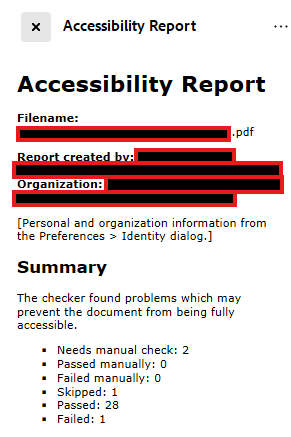
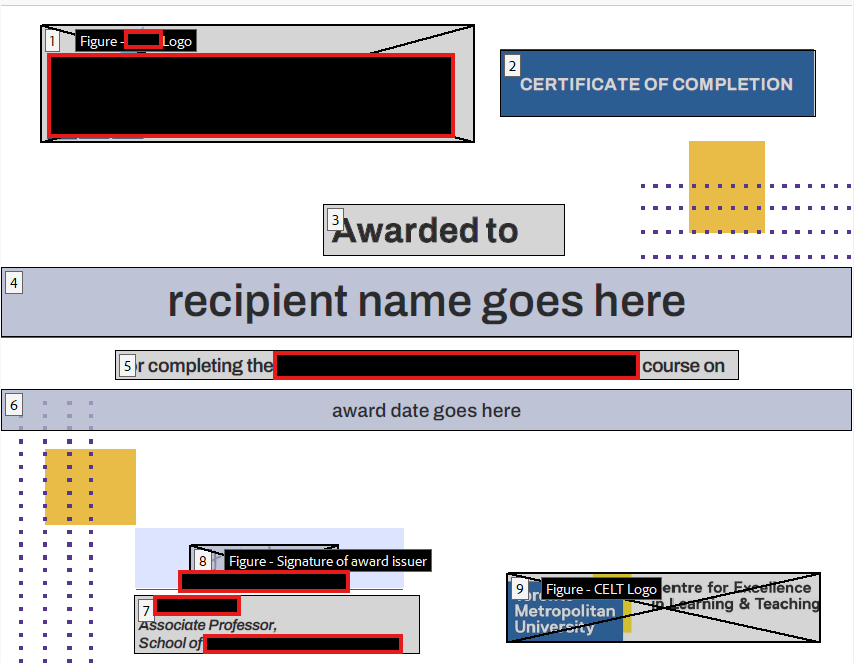
- Run Acrobat's Accessibility Report (screenshot 2i) and check reading order (screenshot 2ii) on the PDF I made, noting next to no accessibility issues.
- Follow instructions, steps 9 through 12: Create a Custom Certificate that uses Replace Strings
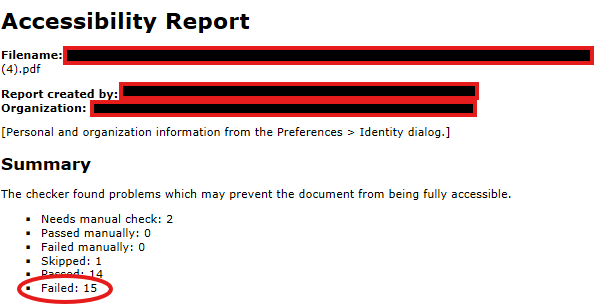
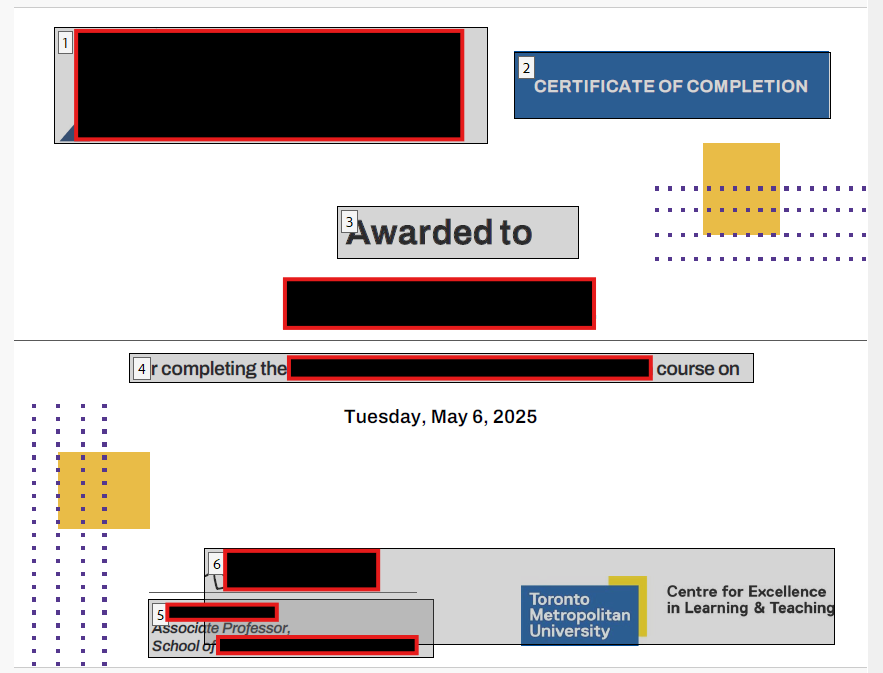
- Run Acrobat's Accessibility Report (screenshot 4i) and check reading order (screenshot 4ii) on a PDF certificate issued by Awards tool, noting many accessibility issues. For example:
- Missing: Tagged PDF, Title, Tagged Content, Field Descriptions, Alternative Text and more
- The two form fields that D2L injected replace strings into are not selectable in the reading order
- Missing: Tagged PDF, Title, Tagged Content, Field Descriptions, Alternative Text and more
Notes:
- If anyone from D2L would like to access the unredacted PDFs and accessibility reports, let me know and I can send them to you by email
- It would be worth testing if PDFs without replace strings also get their accessibility details scrubbed out upon the Awards tool issuing a certificate

Re: Known Issues List Updates
Totally agree with Ryan's requests. I've also been asking for a link to the KIL in these updates—just logical. That's the entire point of the web, interlinking it all. The 'NEW' designation is a great help. Thank you!

Re: Known Issues List Updates
@Ryan.K.8539 Thank you for the feedback. We’re glad to hear that the downloadable list and flags are making things easier. We've discussed your idea internally - it's a great suggestion. While it’s not currently part of our workflow, it’s definitely something we’re keeping in mind as we continue to enhance the experience. We truly appreciate your input and look forward to bringing even more improvements your way.

Re: Release Notes Updates
The May 2025/20.25.05 Release Notes are now live and ready for review in all languages!
Also, the April 2025/20.25.04 Release Notes have been republished to include the following update:
The Grades – Access Quiz Feedback | New feature now includes a clarification about the visibility of the Completion Status column that appears in one of the images.

Re: Checklists and Completion Summary
Hi Emma, I think this is actually a quirk of how it's designed.
When people have not completed the checklist in its entirety, it will display like this:

When they have completed the checklist, the dot becomes a check, and it displays the completion time:

I imagine that what you were expecting is for it to say, for instance, '0 of 3 items completed'?
I can't see a request for this in the Product Idea Exchange, but I'd start by putting one there.

Re: Gradebook & Groups
Hello, professors have the option to filter their view by Users or Groups when assessing students in assignments, assessments, discussions, or the gradebook. This is the simplest way of achieving your goal.
Alternatively you could look at using course sections. More information can be found here:

Re: Deleting Full Learning Groups
Hello Alisa
Thank you for reaching out!
Regarding your question about Intelligent Agents, you can configure an agent to identify users who have completed the course in the past (based on what criteria are set for completion) and have not had any activity since. For example, you can create an agent with criteria to unenroll students who meet this condition. Additionally, you can set up an Intelligent Agent based on specific release conditions, depending on what best fits your use case for students who previously completed the course.

I am also attaching an article on setting this up with Intelligent Agents here:
I hope you find this resource helpful. If you have any questions or concerns, please do not hesitate to contact me directly.
Thanks,
Saleem

Re: Service-to-service authentication?
Hiya,
So, would the user need to re-authorize every time the refresh token expires?

Re: How are you applying late penalties for late assignment submission?
Thank you for asking the question:
I looked into it, and applying late penalties for assignment submissions in Brightspace can be challenging due to the lack of an automated feature. Here are some insights on how other institutions are managing this:
Current Practices:
Manual Calculation: Many institutions still rely on manual calculation of late penalties, which can be time-consuming and prone to errors
Grade Item Formula: Some use a grade item with a formula to calculate the penalty for each assessment. This method requires setting up a formula that deducts a percentage based on the number of days late
Negative 'Bonus' Grade Item: Others use a negative 'Bonus' grade item to apply the penalty. This method involves adding a grade item with a negative value to deduct points from the student's score
Challenges:
Inconsistencies: Manual methods can lead to inconsistencies in how penalties are applied, such as differing interpretations of when the first 24 hours start or whether the penalty is deducted from the maximum value or the student's mark
Student Confusion: The use of a 'Bonus' grade item can be confusing for students, as it appears as a bonus in their gradebook view
Potential Solutions:
Standardized Policies: Establishing clear, standardized policies for late penalties can help reduce inconsistencies. This includes defining when the penalty period starts and how the percentage is calculated.
Automated Scripts: Some institutions have developed custom scripts or tools to automate the calculation and application of late penalties. These scripts can be integrated with Brightspace to streamline the process.
Feedback and Advocacy: Engaging with the Brightspace Product Idea Exchange (PIE) to advocate for the development of an automated late penalty feature can help bring attention to this need
Example Formula Setup:
Grade Item Formula: Create a grade item with a formula that deducts a percentage based on the number of days late. For example, if the penalty is 5% daily, the formula could be: Final Grade = Original Grade - (Days Late * 5%).
Negative 'Bonus' Grade Item Setup:
Bonus Grade Item: To apply the penalty, add a grade item with a negative value. For example, if the penalty is 5% per day and the assignment is 2 days late, the bonus grade item would be -10%.
By implementing these practices and advocating for automated solutions, institutions can better manage late penalties and ensure consistency across courses.
Is there a specific method you're considering or need more details on?