Privacy concerns where sponsor/mentors are able to access the information of all students in a class

Our students are each assigned a mentor who is responsible for their progress through the Brightspace course. The issue is that when the a mentor views their student's progress in the virtual classroom, i.e., grades, assignments, etc., they are also able to see ALL the other student's personal information, grades and assignments. This is now a huge privacy concern for us as each student is employed by different firms in the same industry. I queried our resident "D2L expert" who provided me with the following response:
D2L was designed on a classroom model, assigning one instructor to many learners. D2L's main client base are educational institutions that operate on a classroom/semester based model. We were aware of the privacy issue at the time we set up D2L and explored other options, such as having students/candidates e-mail their assignments to their instructor and receiving feedback via email. However, that would minimize the use of D2L and therefore was not adopted. CAIRP had committed to using D2L when the courses were put online so we were trying to leverage as many features and use it as much as possible.
I understand your concerns. An option you could consider is to look for an alternative to D2L that better suits the CAIRP model. I am not sure when the D2L contract expires but the learning management system market has probably evolved significantly in the last few years.
We are otherwise very satisfied with your product and do not intend to look for an alternative. I am hoping, however, that you can provide me some guidance on how to deal with our privacy concerns!
Answers
-
Hi @Francyne.M.8267,
Thank you for reaching out to us here at the Brightspace Community.. Based on your mentorship model and the importance of maintaining strict learner privacy, there is a configuration option in Brightspace that may be a strong fit for your use case.
Use the Auditor Role for Mentors (Recommended)
Brightspace includes a built-in Auditor capability designed specifically for scenarios where one individual needs visibility into a single learner’s progress—without access to the rest of the class.
With an Auditor relationship in place:
- Mentors are linked only to their assigned students
- Mentors can view that student’s:
- Grades
- Assignment submissions and feedback
- Quiz activity
- Discussion participation
- Content progress
- Login history
- Mentors do not see other learners in the classlist or gradebook
This functionality is commonly used for parents, advisors, supervisors, or coaches and aligns well with your mentorship structure—particularly given that your learners are employed by different firms and confidentiality is essential.
Note: Mentor should not be enrolled into the course and use a separate interface (Auditor Widget) to access and review their associated learner's information.'If this approach is of interest, your D2L Administrator can review role permissions and set up the appropriate Auditor relationships to ensure mentors have access only to their assigned learner.
Best,
Aasim
-
Thank you for your quick response!
If we “tweaked” the sponsor role as auditor would they still have “write” capability, i.e., could they enter grades or upload marked assignments?
Also, can you only assign one student per monitor, as some sponsors have more than one student in any given course, which may be problematic.
-
Hello! Just looking to follow-up on my comment seeking clarification on your response:
If we “tweaked” the sponsor role as auditor would they still have “write” capability,
i.e., could they enter grades or upload marked assignments?Also, can you only assign one student per monitor, as some sponsors have more than one student in any given course, which may be problematic.
-
Hello @Francyne.M.8267!
I've been chatting with @Aasim.Y.704 regarding your question and what the best solution could be.
It doesn't seem that the Auditor tool is going to work for you, since it's not intended to have direct access to a course, nor do things like update grades.
There's a setup which may work for you, but it would require using sections within your courses, and creating a separate role for these sponsors. In each course where this type of setup is needed, you'd need to enroll your learners into a section along with their sponsor (you can enroll multiple learners into the same section who work with a single sponsor). That sponsor would then only have visibility into the learners in their section, and would not be able to see assessment items such as grades, assignments, quizzes, etc of learners in other sections who have their own sponsor.
Would this be a setup that could work for you? If so, I can provide details on what exactly you need to do to get it working!
Thanks
~Stephen -
Thank-you for getting back to me Stephen. Yes, that is a possibility. If you would kindly provide those details, I will bring the solution back to my resident "D2L expert."
-
Perfect! I'll break this down into a few steps. Just let me know if there's anything we can clarify for you.
- Create new role and modify settings
For these sponsor users you will need a new role that will work to separate out their learners from other learners in the same course. The new role should be a pretty close, if not exact, copy of your general instructor role. I would simply make a copy of that role and give it a new name, then any permissions can be modified if necessary. HERE is some information about copying a role.
You'll need to adjust the settings for this new role. You can access the settings page while you're going through the role copy process, or from the main Roles & Permissions page by selecting the drop down menu next to the new role and selecting Edit Settings.
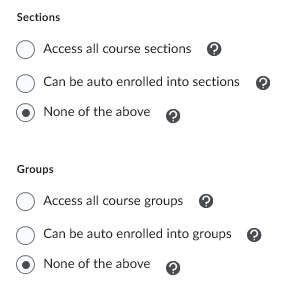
On the bottom of the Settings page under Course Access Options, you want to modify the settings for Sections and Groups. Both should be set to None of the above:
- Modify enrollments of sponsors
Once the role is created, you'll need to change the enrolled of your sponsors within their Course Offerings over to the newly created role.
- Create course sections
If your courses don't currently use sections, you'll need to enable and create sections for your each sponsor where you can then enroll your learners.
Sections may already be available in your course. Check this by going to the Course Administration area and see if Sections is available under the Learner Management area. If not, head to Course Offering Information. Just above the Start Date and End Date area, check to see if there's a field for Sections, and a select-box for "Course has sections". Enable this, and then you can go back to the main Course Administration area to look for the Sections link under Learner Management.
NOTE: If you don't see "Course has sections" within Course Offering Information, let me know and I'll guide you through the process to enable that.
Create your Sections by going to the tool and selecting Create Sections. My recommendation is one section per sponsor within that specific Course Offering. As an example, if you have two sponsors, select the Enrollment Type menu, choose # of Sections, and enter 2 into the Number of Sections field.
No need to select any of the options within Advanced Properties or Additional Options.
- Enroll users into sections
Once your sections have been created you can begin to enroll your learners as well as their sponsor into those sections.
Select the Enroll Users button. Make sure you don't forget to also enroll the sponsor into the section with your learners. Please note that you are able to enroll more than one sponsor into the same section as needed. There's no limit to how many you can have per section.
- Test to verify new changes
I always recommend testing directly once you have the setup completed, either by impersonating one of your sponsors or by enrolling a test user into the course, and section.
What you should be seeing though is that only the students within the sponsors section are visible in the classlist, grades, assignments, etc.
If you run into any problems or have any further questions about this process just let me know. If you do proceed, we'd also love to hear from you if the setup is successful!
~Stephen
-
Hello @Francyne.M.8267!
Hoping all is well. Just wanted to check back in with you to see if your institution has had a chance to think about the possible solution above.
We're here to help if you have any other questions we can answer.
~Stephen

 admin
admin