Best Of
Re: Can Brightspace be set up to deliver in-LMS alerts to students on Teams?
Hi Mayra,
Thank you for your question.
Brightspace cannot natively deliver LMS alerts (announcements, discussions, deadlines, etc.) directly into Microsoft Teams.
The Teams Course Connector focuses on provisioning (teams, enrollment sync), not notifications.
Currently, Brightspace notifications are delivered via email and Brightspace Pulse (push notifications), and as you mentioned, Intelligent Agents can automate alerts, but these are limited to email delivery, not Teams.
If this is a feature you’re particularly interested in, we recommend submitting a suggestion to the Product Idea Exchange (PIE) for future consideration. You can create a new PIE item or upvote an existing one using the link below:
👉 Brightspace Community Idea Site: Submissions (brightidea.com)
Submitting your idea or upvoting existing suggestions helps ensure that features with the greatest impact on our clients and end users are considered for inclusion in future updates.
I’ll also share a few relevant Brightspace Community articles below for additional context:

Re: Best practices for Google Integration with Brightspace
Hi,
Thank you for reaching out in the Brightspace Community.
If Google does not appear under Admin Tools → Manage Extensibility, this typically indicates that the Google integration was configured using an older LTI setup or a legacy connector. This can occur even when Google Classroom and Google Assignments are currently functioning within Brightspace.
Regarding your question about resetting up the integration using LTI 1.3 Advantage:
• Yes, configuring a new LTI 1.3 integration would disrupt the existing setup if the current connector is removed or replaced.
• Any existing Google links, assignments, or associations created using the current integration would not automatically migrate to the new LTI 1.3 configuration and would need to be recreated.
Before making any changes, we recommend reviewing the current integration configuration to avoid unintended disruption. If you encounter any issues or would like assistance reviewing your LTI setup, it would be a good idea to create a support case with details of the current Google LTI integration so we can investigate further.
Please keep us posted on whether this information helps you complete your intended workflow.
Kind regards,
Shobhit Sachdeva

Re: Difficulty generating questions with Lumi Quiz with a single PDF
Hi Yi,
The “insufficient content” error in Lumi Quiz can occur even when using a 36-page PDF if the system is unable to extract enough meaningful text from the file. This often happens when PDFs are created from PowerPoint slides, since slides typically contain short bullet points, headings, images, or diagrams rather than continuous text. As a result, the AI may detect low-density or fragmented text and determine that there isn’t enough context to generate questions. You can review the text Lumi extracted by clicking Edit Source Text.
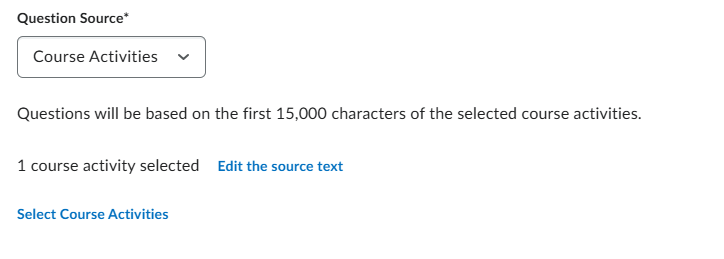
Additionally, the Bloom’s Taxonomy level selected and the number of questions requested can impact generation. Higher Bloom’s levels (such as Analyze or Evaluate) require deeper reasoning from the source material. If the content mainly contains definitions or short phrases, Lumi may determine that the material does not support those levels and return an error. Requesting a larger number of questions at once can also lead to failures if the available text is limited.
To improve the success rate, you may want to try the following:
- Review and edit the extracted source text before generating questions to ensure it contains clear and continuous information.
- Start with lower Bloom’s levels (such as Remember or Understand) and gradually increase if generation works successfully.
- Request fewer questions per generation (for example, 1–3 questions at a time).
- Use more text-rich content or add additional explanations, such as summaries or instructor notes, to provide more context.
- If the PDF extraction is weak, consider using Custom Text and paste a clearer section of text directly.
These steps typically help improve the reliability of Lumi Quiz question generation.
Thank you,
Hai Nguyen

Re: Respondus quiz with Excel attachments
You're correct that using a Written Response question allows you to attach an Excel file, but students will be able to download and potentially share it. Unfortunately, D2L doesn't have built-in controls to prevent students from saving or sharing the file once they have access to it.
Possible Workarounds:
- Use Respondus LockDown Browser with File Upload
- If you enable Respondus LockDown Browser, students can download and modify the file but won't be able to open other applications or share it during the quiz. However, once they submit, they may still retain a copy.
- Use Google Sheets with Restricted Access
- Instead of attaching an Excel file, create a Google Sheet with restricted access (e.g., "Anyone with the link can view").
- Provide the link in the question and instruct students to make a copy within their Google Drive (this forces them to work on their own copy).
- They can then download and upload the modified file into the quiz.
Currently, D2L does not have a built-in way to prevent students from keeping a copy of an attached file once they download it. If the integrity of the file is critical, the best approach would be controlled access via cloud tools or using a monitored environment like LockDown Browser.
Regards

Re: Best practices for Google Integration with Brightspace
Hi Anne,
Yes! I can share a few practical steps to make Google Assignments feel much more seamless in D2L Brightspace—and closer to what faculty enjoy in Google Classroom.
Here are some simple, high-impact tips:
1️⃣ Standardize the Workflow for Faculty
One of the biggest friction points is inconsistency. Consider:
- Providing a standardized step-by-step guide for creating assignments using the Google Assignments integration inside Brightspace.
- Encouraging faculty to always create assignments from:
- Content → Existing Activities → External Learning Tools
- Or Assignments → New Assignment → Google Assignments
This reduces confusion and ensures grades sync properly to the Grade Book.
2️⃣ Offer short, focused training
Many instructors prefer Google Classroom because it feels easier. A quick walkthrough showing how Google Assignments works in Brightspace—automatic Drive copies, originality reports, and grade sync—can help them see the similarities.
3️⃣ Highlight automatic grade syncing
One advantage inside Brightspace is that when grades are published, they sync directly to the Brightspace Grade Book—no exporting or manual entry needed. This is a big efficiency win that’s worth emphasizing.
4️⃣ Review the integration configuration
If the process feels “OK, but not great,” it may be worth confirming:
- LTI 1.3 Advantage is being used (recommended for improved sync and security)
- Proper role provisioning is enabled
- Domain-wide delegation is configured correctly
- Google Drive permissions are not restricted by institutional policies
A quick configuration review can sometimes resolve small friction points.
5️⃣ Leverage Brightspace Features to Add Value
Remind faculty that Brightspace offers tools beyond assignment submission, such as:
- Intelligent Agents
- Release Conditions
- Rubrics tied directly to assignments
- Class Progress analytics
This helps position Brightspace as an enhancement—not a replacement.
I hope these tips help make the experience smoother for your faculty! 😊
Re: Brightspace Data Sets Updates
🚀 The Keeping on Top of Brightspace Data Sets updates blog now includes a preview of the changes scheduled for April through June 2026, including the end of the adoption window for BDS Major Version 11.
Check out for more details!

Re: Any timeline anticipated for LockDown Browser LTI 1.3 support?
Hi Janet,
As of the March update, the configuraion variable d2l.3rdParty.Respondus.LockdownLTI13LinkId is now available in all Brightspace test and production environments.
The next step is to connect with your institutions Respondus account/support team who will work with you to activate LTI 1.3.
Hope this helps!

Re: Data hub experts... Help me find a way!
@Michel.M.597 Hi Mike! Try joining on MediaObjects.ContentId and SCORMObjects.ContentServiceContentId as well as SCORMObjects.ContentObjectId and ContentObjects.ContentObjectId
This will give you all three titles:
- MediaObjects.Title is what the owner of the object can see in their Media Library
- ContentObjects.Title is what is displayed as the Content topic title in the course
- SCORMObjects.Title is the name of the SCORM package when it was created (not sure if you can see this in the Media Library or within a course though)

Re: H5P Interactive - Add Grade Item after creation
Hey Ashley, this can depend on how the H5P was originally added.
If it was added to Brightspace via “Insert Stuff”
-You can go to your embedded H5P, click “Edit,” scroll down to “LTI Settings” and make a selection from the “Choose when to send scores to the LMS:” dropdown (either First Attempt, Last Attempt, or Best Attempt).
-Keep in mind that the grade item won’t be created in the gradebook until a student Submits a response. You could test it out with a student account first to make sure it is recording properly.
If it was created externally and embedded (ie created on H5P.com)
-It is recommended that you recreate the H5P via the “Insert Stuff” workflow
-If this is the case, there are ways to copy the existing H5P, which I’d be happy to elaborate on

Re: Feature Request for Accommodations
Hello! I would suggest adding this to the Product Idea Exchange (3rd Party Tool). Note that you will need to be logged in separately to PIE in order to add ideas. Here is some more info about PIE: