How to change quiz question score after attempts?

Yi Yan.L.782
Yi Yan.L.782 Posts: 50 Analytics Builder Transition

Hi D2L Community,

Is there a way to change the quiz question point value after a student attempt has been made? e.g.

I have a question which was scored as 1 pt, but it's supposed to be 3 points.

Is the only way to adjust the Grade Item score (via Grades) & "to update all attempts" (via quiz)?

I've referred to this thread as well but it did not give me the outcome I was hoping for:

Change a quiz question point value after the quiz has been written by students. — Brightspace

Appreciate the help. Thank you.

Tagged:

Best Answer

  • Susan.W.104
    Susan.W.104 Posts: 33
    Answer ✓

    Hi @Yi Yan.L.782

    This should work:

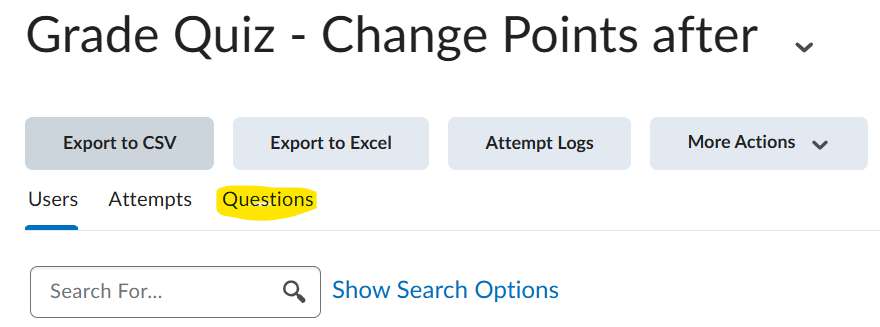
    Select the drop down beside the Quiz, and select Grade.

    Select Questions

    Quiz Change.png

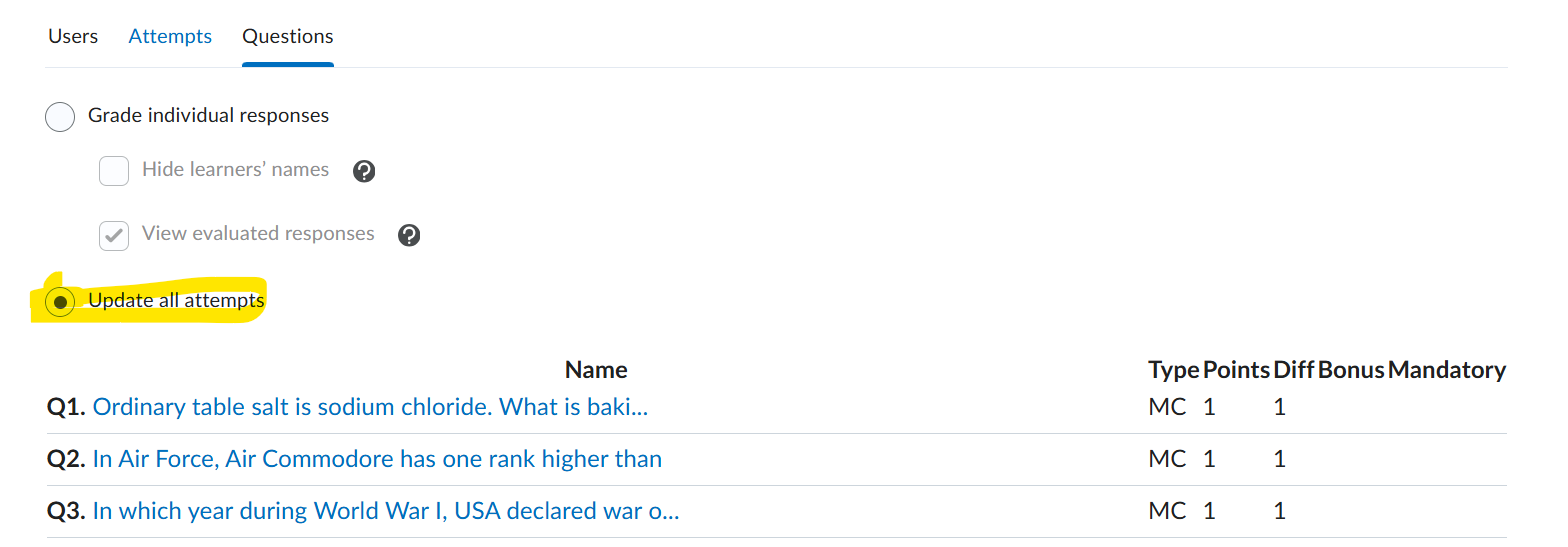
    Select Update All and select which of your questions requires the point change underneath

    Update all.png

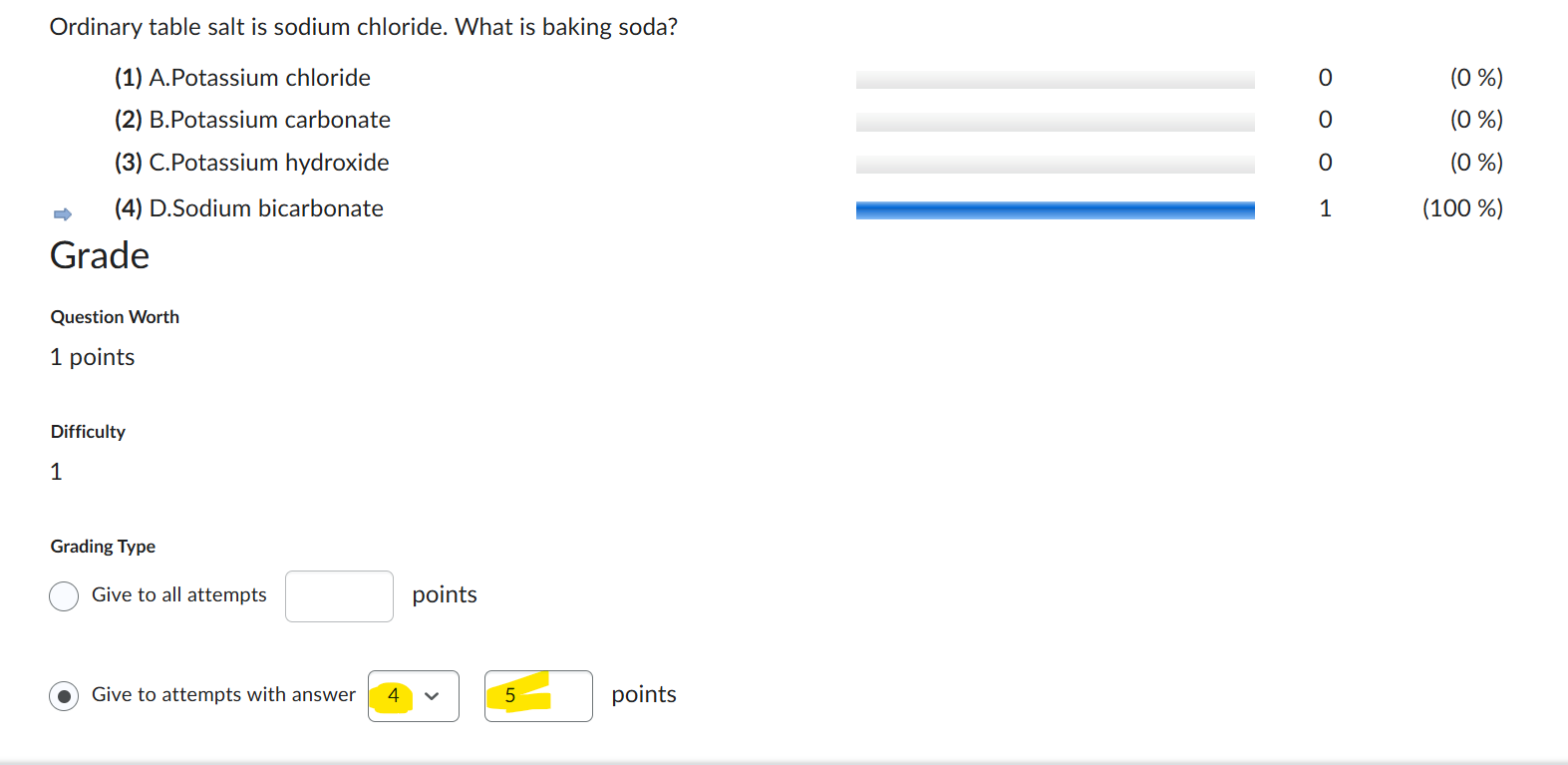
    Then select the following: Give to attempts with answer (make sure to change to whatever the correct answer is supposed to be + the points you wish to have)

    changed.png

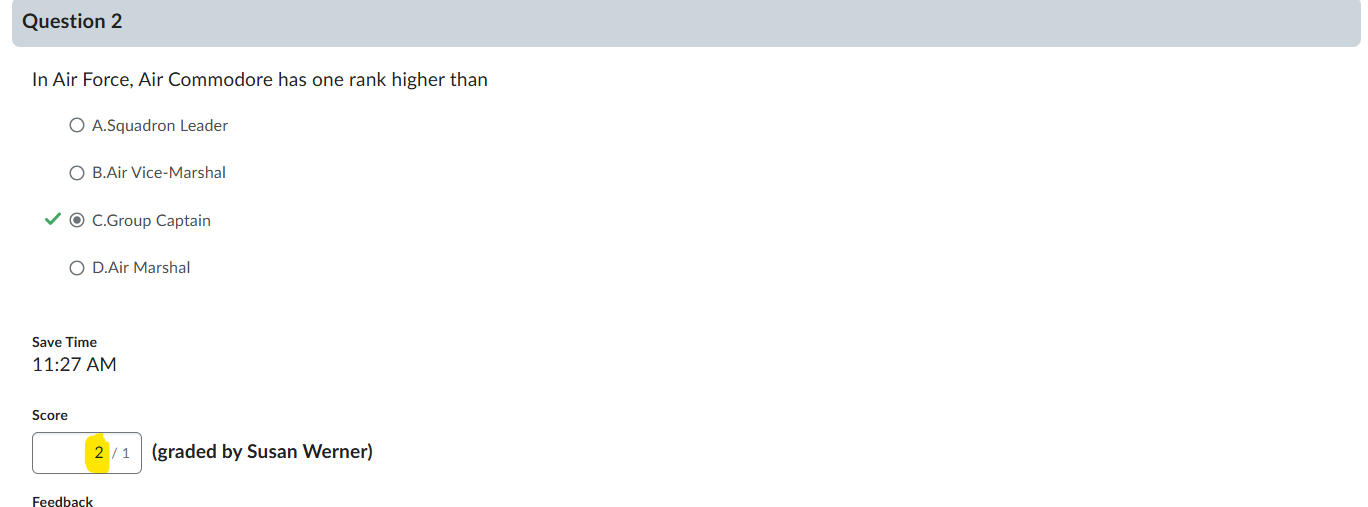
    I believe this works, I did a test run and it did change for the demo student. The only thing I dont know is if you should have the Grades to exceed, if that is a factor for your situation.

    Student.png

Answers

  • Yi Yan.L.782
    Yi Yan.L.782 Posts: 50 Analytics Builder Transition

    Hi Susan, thanks for your reply, and for the detailed steps. 😊

    Also, apologies for the ambiguity in my earlier post, allow me to share a bit more to the post on what I meant by "outcome was not what I was looking for".

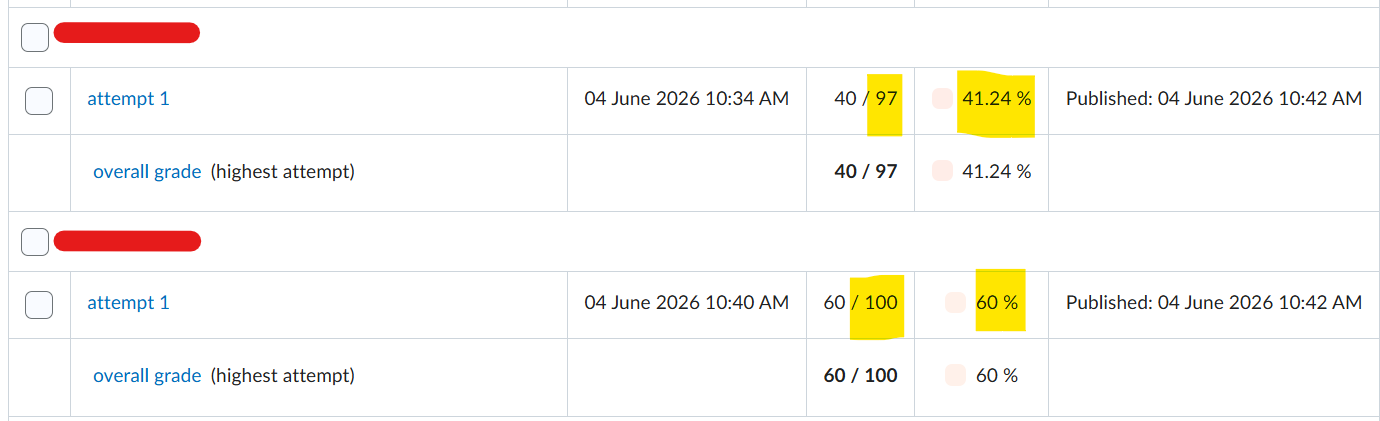
    After updating the quiz scores via "Update All attempts", the numerator would get the updated score, but the denominator remained the same as the old total. As a result, when I publish the scores to Brightspace, the % is incorrect.

    E.g. old quiz score of student/total marks = 37/97.
    After updating the quiz question score, it should be = 40/100 40%, but the system retains the denominator, thus the score is shown as 40/97 41.24%.

    image.png

    As a result, staff have to be made aware to ignore the % value, and just focus on the numerator value. % would have to be separately calculated.

    Is there any known way that the quiz score denominator would also be updated?

  • Susan.W.104
    Susan.W.104 Posts: 33

    Hi @Yi Yan.L.782

    I am not entirely sure, but I entered our text into Google Gemini - so please I would suggest trying this in a Sandbox course first.

    Because the maximum number of points cannot be changed retroactively for completed quiz attempts inside the Quiz tool itself, the only way to get a clean, correct percentage score is to force the update through the Grade Book.   The exact workflow to fix the denominator mismatch without having to manually recalculate percentages uses a specific order of operations:

    Step 1: Clear Out the Old Grades (Retract Feedback)

    If you try to change the points in the Grade Book while the quiz is actively synced, Brightspace will push mismatched data back and forth. You need to temporarily break the link.

    1. Navigate to Quizzes.
    2. Click the drop-down menu next to your quiz and select Grade.
    3. Select all quiz attempts, click Retract Feedback, and save. This clears the grades out of the grade book for a moment.

    Step 2: Fix the Total Points in the Grade Book

    1. Go to Grades -> Manage Grades.
    2. Locate and click to edit the specific Grade Item mapped to your quiz.
    3. Under Grading, change the Maximum Points to match your new total (e.g., change it from 97 to 100).
    4. Crucial: Ensure you check the box for Can Exceed. (This ensures that if a student's newly adjusted numerator happens to scale beyond expectations, Brightspace won't block it).
    5. Click Save and Close. A pop-up dialog will ask you to confirm; click Yes.

    Step 3: Push the Correct Numerators & Recalculate

    Now that the Grade Book knows the correct total is 100, you can push the updated quiz attempts back into it.

    1. Return to Quizzes and select Grade from your quiz’s drop-down menu.
    2. If you haven't already done so via Update All Attempts in the Questions tab, go ahead and assign the new point values (giving the 3 points instead of 1).
    3. Go back to the Users or Attempts tab.
    4. Select all student attempts and click Publish.

    How Brightspace Handles This

    When you publish the grades back to the newly updated Grade Book item, Brightspace will apply a scaling calculation to map the quiz percentage to the new item total. Your final Grade Book columns will correctly reflect the right percentage (e.g., 40/100, which evaluates to 40%), fixing the math layout so staff don't have to calculate scores by hand.

    Again, 100% transparency that this is AI generated and I have not tested.