Best Of
Re: Virtual Machine Creation VMWare Workstation
Hi Tugdual,
Welcome to the D2L Brightspace Community portal.
You may want to check that Virtualization is enabled in your Win10 BIOS. This article provides details:
Should this not be the issue, please contact the VMware team for assistance at: it.academy@broadcom.com.
Regards,
Natasha
(D2L Learning Administration Manager)

Re: Bilingual Login Page
Hi @Charlotte.D.327. The Login Page Management tool lets us manage a single copy, without localized versions. The language selector only switches system text, like Username/Nom d’utilisateur, and Password/Mot de passe. To have English and French options means having both languages on the same page, cereal box style.
Let me know if you have any follow up questions.

Re: Fixed Issues List Updates
A new version of the fixed issues list has been uploaded.

Re: Known Issues List Updates
A new version of the Known Issues List is now available. The most recently added known issues are flagged as *New*.

Re: Copy Course Material
Hello @Jim.S.393 ,
Thanks for connecting with the Brightspace Community.
Here are the step-by-step instructions for exporting content from Blackboard and importing it into Brightspace:
Exporting content from Blackboard:
- Enter the course and turn on Edit Mode.
- Go to the Control Panel.
- Click on Packages and Utilities.
- Select Export/Archive Course.
- Choose Export Package.
- On the Export Course screen, navigate to Section 3 and click the Select All button.
- Click Submit.
- Check your email inbox for a confirmation email.
- Return to the Export Course screen, click Refresh, and confirm the presence of a Zip file link.
- Click on the link to save the file in Downloads.
Importing content to Brightspace:
- Go to the designated course in Brightspace.
- Navigate to Course Admin Tools > Course Admin.
- Access Site Resources > Import / Export / Copy Components.
- Move to Import Components and click "Start."
- Click "Upload" and select the package to import from the Downloads folder.
- The uploading file status changes from green to blue.
- Click "Import All Components" to complete the import process.
Should you have any questions or concerns please do not hesitate to contact.
Thanks,
Bharti

How do I set up KTCA rubrics and grading schemes?
We've been gradually migrating from Edsby to Brightspace.
Does anyone know how I can do the following:
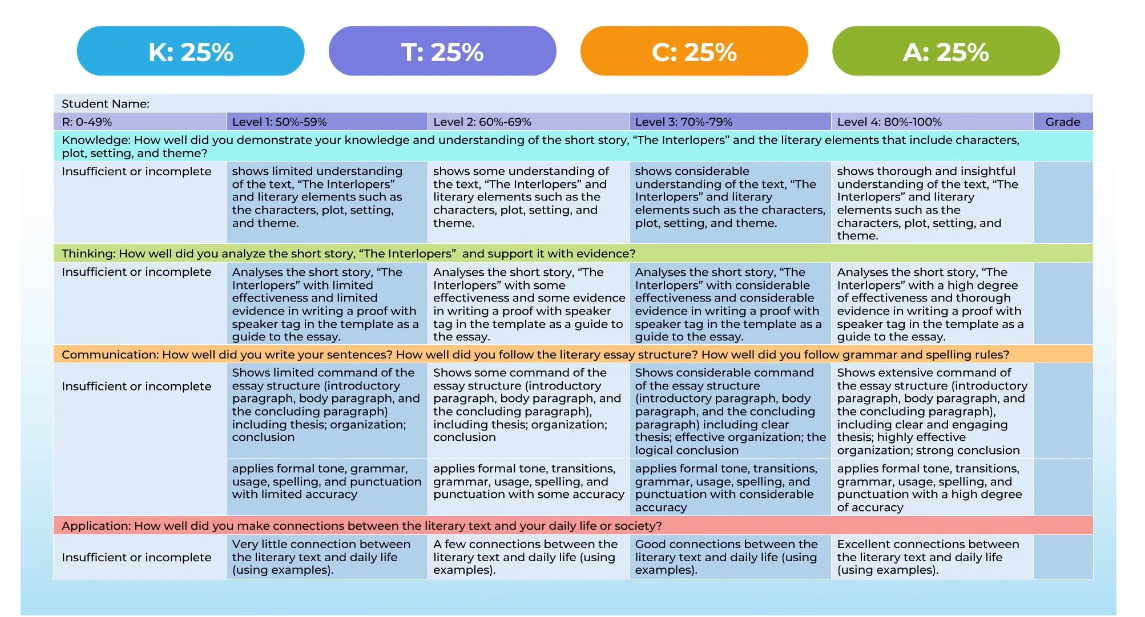
A. Create a KTCA rubric similar to the image below.
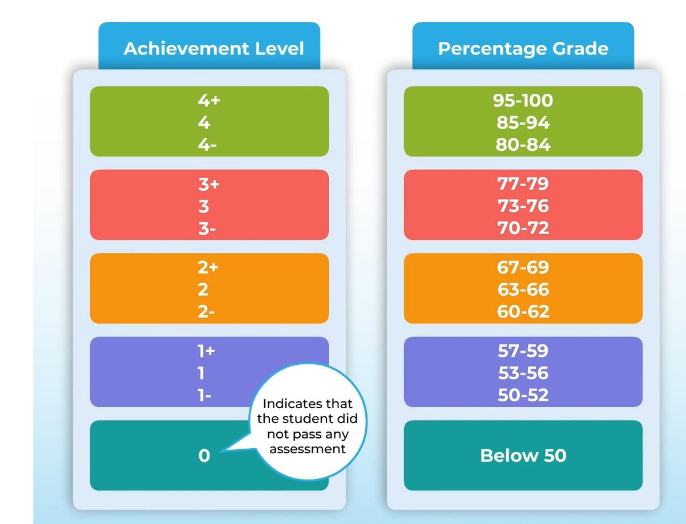
B. Set up my grade book with KTCA achievement levels.
C. Create a report card similar to this?

Thank you!

Re: How do I set up KTCA rubrics and grading schemes?
Hello Jazzmin
The rubric samples you attached above both look achievable. One has more levels than the other (smaller percentage ranges), if they were both to be rubrics, but in either case bunch of levels could be set up in a rubric so that when you clicked on one of the levels (columns) under a given criteria (row) the learner would get the corresponding number of points which is calculated as a percentage score.
I'll first describe the use of a rubric to generate a score and not a way to derive different "levels" from a percentage value (from an assessment).
Using your first attached image (sample-ktca-rubric.png) the Criteria (rows) are Knowledge, Thinking, Communication, and Application. The Levels (columns) are Level 1 - Level 4 and the descriptions of each are the remaining text we see in that PNG image. To give someone the corresponding percentages with this rubric I might award 55, 65, 75, and 95 points for Level 1-4 respectively. The combination of these across the four criteria would create some value between 220 and 380. Divided by 400, you'll again get something between 55% and 95% which leaves the learner in one of those four levels overall.
If, rather, you want to start with a percentage obtained from the course assessments and give a learner a point value like we see in your second attached image (ktca-achievement-levels.png) then you would set up a Grade Scheme in your course. In the attached image I created this sort of grade scheme.

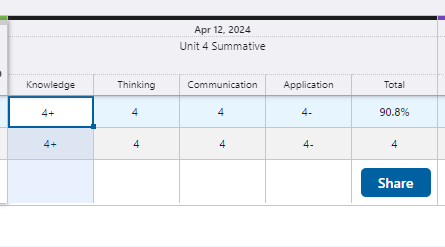
If you used this scheme in your course then the Gradebook would look similar to your third attached image (sample-gradebook-with-achievement-levels.png) and would give an overall result similar (combining 4+, 4, 4, and 4- as "4").
So the Rubric is used to apply a score to the assessed activity using a grid of meaningful explanations, and a Grade Scheme is the way to display the overall percentage grade as the set of "symbols" you provided.
Finally, the "Report Card". This is something that could be achieved as a custom report. The data is all available but the magic here is how it's laid out.
My recommendation is to reach out to your Customer Success Manager to show you how this is all done in Brightspace and to get an Estimate Request for the custom report.
I hope that's all helpful!
Matt
Learning Administration Manager

Feedback on recent changes to the PIE
Hi folks, Just a comment that I'm not loving recent updates to the PIE. With this change, we are no longer able to:
- "Like" posts (and all existing "Like" info for posts has disappeared).
- add images in replies…in fact, all images I previously added are no longer visible. They have just become dead link text.
- edit posts after submitting (which I sort of agree with…although it's frustrating if all I want to do is fix a typo)
Was input sought for these changes? If so, from whom and how?
Tags: UX, User Experience, Usability, User Engagement, Consistency, User Enablement

Re: Community Updates
Hi everyone!
We are so thrilled to announce the release of the relaunched ASC Support Portal!
As of today, May 9th, 2024 all ASCs can access a new button on the Community homepage to connect with the experience.
New Features
The new portal includes
- improved case filtering
- self-serve access to download case reports
- suggested solutions targeted to your case summary
- a brand new way to add or remove contacts to a case to improve your ability to monitor and communicate progress

New Resources
- New ASC Tutorial Video
- Learn how to create a case or service request
- Learn how to Manage Existing Cases
Additional Resources:
Important Notes
- ASCs will have access to all legacy case data and information in the new portal
- ASCs will have access to both the New and Legacy experience until May 29th
- We want to keep improving the experience!
Please share your feedback with us so we can keep building a better Community Together.