Best Of
Re: Only highest grade attempt counted in grade book.
Hi @Anna.P.5528 ,
Have you tried using the Edit Quiz > Manage Attempts > Increase the Attempts Allowed to the maximum number of attempts you want a learner to have > Choose Highest Attempt for the Overall Grade Calculation
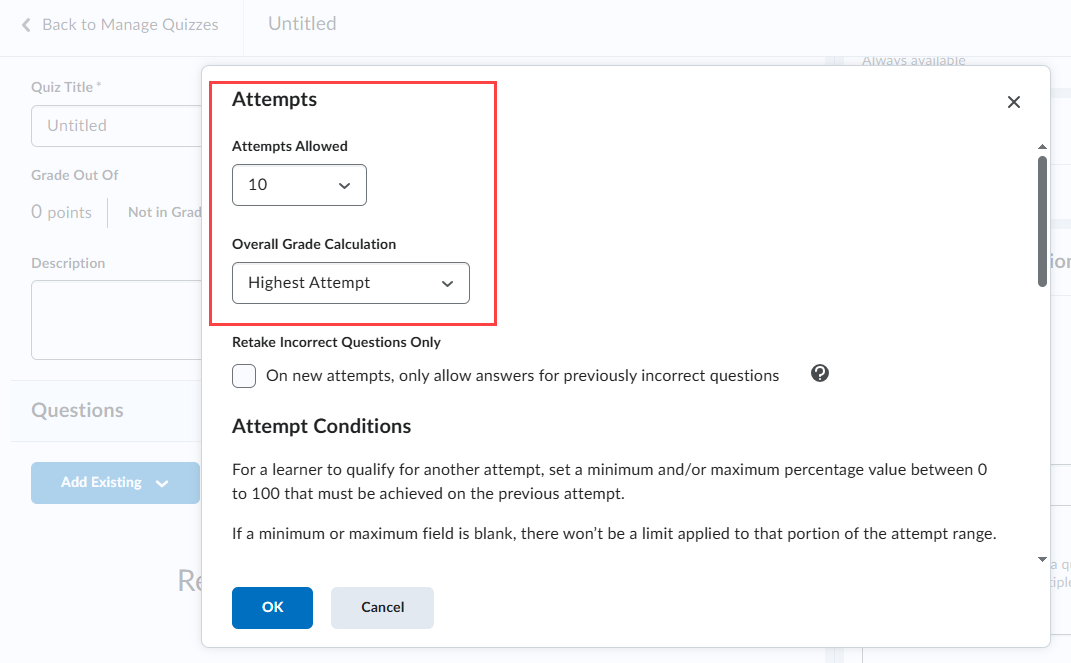
This will automatically calcualte the overall grade item based on the learners attempts submitted. There are even additional options if you want to allow learners to retake the questions they got wrong on a previous attempt.
There is no way for the system to calculate overall scores without the learner submitting the assignment, so hopefully the above option will work to meet your needs.
Regards,
Janet

Re: Why is option not stand-alone?
Hi Mike,
Thanks so much for following up and for sharing your thoughts!
- Make this award available to all of my courses – This option allows the creator of the award to share it in other Org Units where they are an instructor. (Note below those settings: as the award creator, you will always have access to your awards for use in other courses. The settings above allow others to easily reuse your awards in their courses if you choose to allow it.) The workflow was intended as a way for an instructor to easily create an award and reuse it across other courses. Additionally, there's a filter when adding an award to a course to "Show Only Awards I Created", which that setting should align with.
- Make this award available to other award creators and their courses – This option allows the award to be shared across the entire org with other users (not necessarily ones where you are an instructor). Other users would also be able to see/add this award into all other Org Units.
- The “Restrict award to…” – This setting further restricts the above setting to only that Org Unit and its child Org Units. Example: Create an award within a Math Department Org Unit to only be available and used within Math course offerings under it. The checkbox restricts the award to only that Org Unit and its children (if set within a course offering, that award is only available in that course).
I hope that helps clear it up! Let me know if you'd like any more details or have feedback you'd like me to pass along.

Re: Bulk Deletion of Sections from Courses in Brightspace (via API or Other Method)
Hello, Kabir, how are you?
Sounds good, thank you for the additional information and the clarification.
The Organisational Units Brightspace data set has the Section ID of every Section in your organization. The value under the "OrgUnitId" column is actually the Section ID for the Section in question. You can also filter the third column ("Type") to show only Sections and that will also help you find the necessary Section IDs.
I hope you have found this information to be useful. Should you have any additional questions, please, let us know and we will be more than glad to further assist you, okay?
Thank you kindly,
Piero de Sá
Bilingual Product Support Analyst

Re: Print a quiz
Hi @Denee.H.77
Printing a quiz in Brightspace is getting a whole lot easier!
Administrators can use a free tool called the Quiz Printer Widget for Brightspace Quizzes to print quizzes and answer keys
Coming August 2025 we're releasing a feature "Print a Quiz to be Taken Offline" right in Brightspace that will offer Instructors a way to print a quiz that may include any "native Brightspace question type, shuffling, question pools, and multiple versions as well as an answer key"

Re: Is there a listing of Brightspace data sets that are limited to two years of historical data?
Hi @Miguel.B.106 and @Charles.K.718 - sorry for the late response but I just came across this thread.
Please be aware that the list of Brightspace Data Sets listed above are no longer date/time limited - but instead they adhere to the standard 150 million rows limit as documented in the Data Hub documentation:
https://community.d2l.com/brightspace/kb/articles/4507-about-data-hub#data-limits
In the past those BDSs were limited by date/time - but that has not been the case since the end of 2024.

Re: Known Issues List Updates
Hello, this issue has been resolved. Thank you for your patience.

Re: Can we enhance Data Hub with add-ons for better course evaluation?
Hi @Samar.A.8205,
Thank you for your question. We recommend exploring the Insights Dashboard, particularly the Engagement Dashboard. This tool includes visualizations that provide insight into how learners are engaging with their courses. Its primary purpose is to support users, especially instructors and advisers, in identifying at-risk learners and enabling timely interventions to help them stay on track. By offering contextualized and comprehensive information, the dashboard supports personalized recommendations for learner improvement. You can find more information in this article.
Please note that access to the analytics tools requires the Performance+ package.
For more details, contact your organization's ASC or administrator. You can also reach out to your school or organization’s Help Desk to submit a support request.
If you're unsure how to proceed, feel free to email us at questions@community.d2l.com with the name of your school or organization, and we’ll provide the appropriate contact information.
If you are the ASC or administrator, we recommend reaching out to your Customer Success Manager (CSM) for further assistance.
I hope that helps!

Re: Why is there a difference between how instructors and students insert images and audio files?
Hello @Mike.B.559,
Thanks for your response. Unfortunately I couldn't access the thread you have referenced from @Jenn.R.456.
Regarding the Insert Stuff > Courses Offering Files option is not present for the Student view but it is present for the Instructor view:
The permissions that control that option in the Insert Stuff are under the Manage Files permissions. The permissions are 'See the File Listing', 'Upload Files', and 'Browse Public Files'.
Please refer to the below documentation for more information about these permissions:
https://community.d2l.com/brightspace/kb/articles/4491-manage-files-permissions
PLEASE NOTE that we do NOT recommend enabling these permissions to student's/learner's roles because this would allow them to upload/access directly to manage files in the course.
By not enabling these permissions, you prevent students from uploading content and overwriting each other's content if they all use the same file name when needing to upload files.
To upload files from the computer in the assignments, the students can use the attachment options showing in the screenshot below:

Please feel free to open a Support case and we can take a closer look to this.
Best, Ana

Re: Short answer question with a number range
Hi @Sue.S.4,
May I suggest trying the following regular expression in the answer field: ^(1[0-2]|[5-9])$ This may help ensure that only valid responses between 5 and 12 are accepted.
For context, here's how it works:
^and$are anchors that ensure the match applies to the entire string, from start to finish.1[0-2]matches the numbers 10, 11, and 12.[5-9]matches the numbers 5 through 9.
This expression will successfully match any number from 5 to 12, while excluding anything outside that range.
Thanks,
Rusha
