By: Monica Gaertner, Senior Product Manager
Instructors, do you have students who believe that an auto-graded quiz question was wrongly marked as incorrect? Here is an example from a Short Answer question type.
An instructor sets up a short answer question like this:

When a student takes the quiz they answer the question with “Igneous rocks” and the response is auto-graded as incorrect – even though conceptually they have the correct answer.
This can be resolved by providing additional correct answer option variations. You may also want to consider single versus plural answer options.
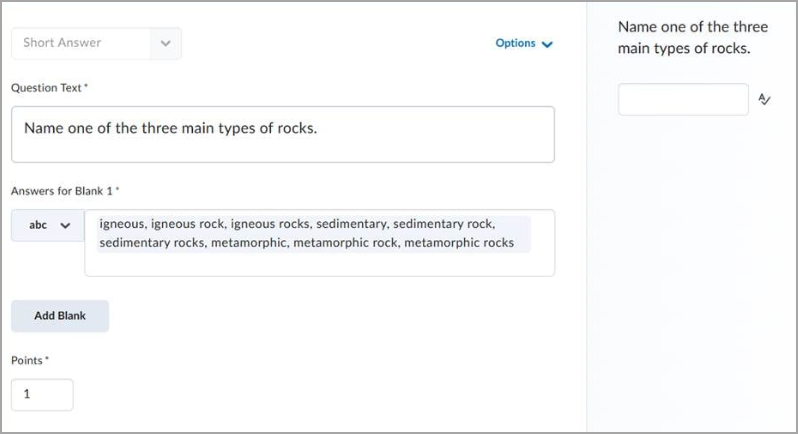
It would be ideal to create additional correct answer option variations at the time of question creation or edit the question before any learners take the quiz.
However, if learners have already taken a quiz attempt with that question before you added additional correct answer options, you have a couple ways to adjust the awarded points:
- When grading from the Users or Attempts tab, you can use the Incorrect filter to easily see all the questions that were marked incorrect for an individual attempt. You can then manually adjust the score for the question if you feel the learner had the correct concept.

- When grading from the Questions tab, you can use the Update All Attempts option and then select the question. Select one of the following options to update the grade: Give all attempts {a set number of} points, or Give attempts with the following answer {a set number of} points.

We hope you found these tips & tricks for short answer questions helpful!