Is there a way for Instructors to upload a document to a Dropbox as a submission?
One of our faculty committees uses a continuous D2L course page to receive submissions for review. Right now, committee members are enrolled in that course page as instructors so that they can review all submissions. However, we are now experiencing an issue for those committee members who ALSO need to be able to submit something to the Dropbox.
Is there a way to grant submission access AND review access to a Dropbox?
When testing this, I did try to update the "Roles and Permissions" for Instructors within the Dropbox tool. I selected the option that allowed them to "See and Submit" to the Dropbox, but when I asked the members to test it they are only able to submit things as feedback still.

Answers
-
Hello @Kira.H.305, thanks for your question!
I'm unaware of a direct way for you to achieve this when those instructors have a single account within the course. But I think there's two work-around options you might be able to
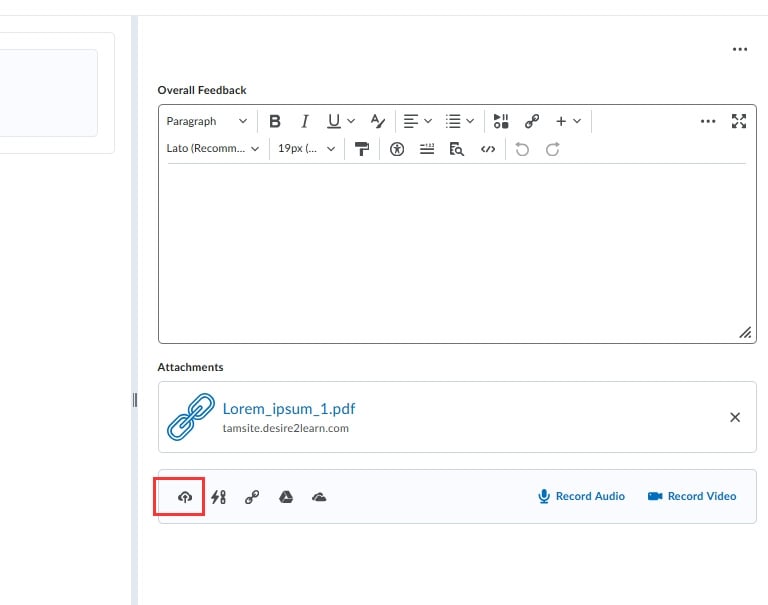
I do think one option could be to have them upload their file to the feedback area. The person reviewing the submission could select that upload (which will download it) and then proceed with any evaluation that's needed. Unfortunately you wouldn't have access to the annotation tools.
Uploading can be done using the cloud/arrow icon, as highlighted in red. The file will appear just above, like in this example:
A second option could be to use the Role Switch tool and access the course as a Student.
The user could go to the Assignment, upload their file, and submit like a student would.
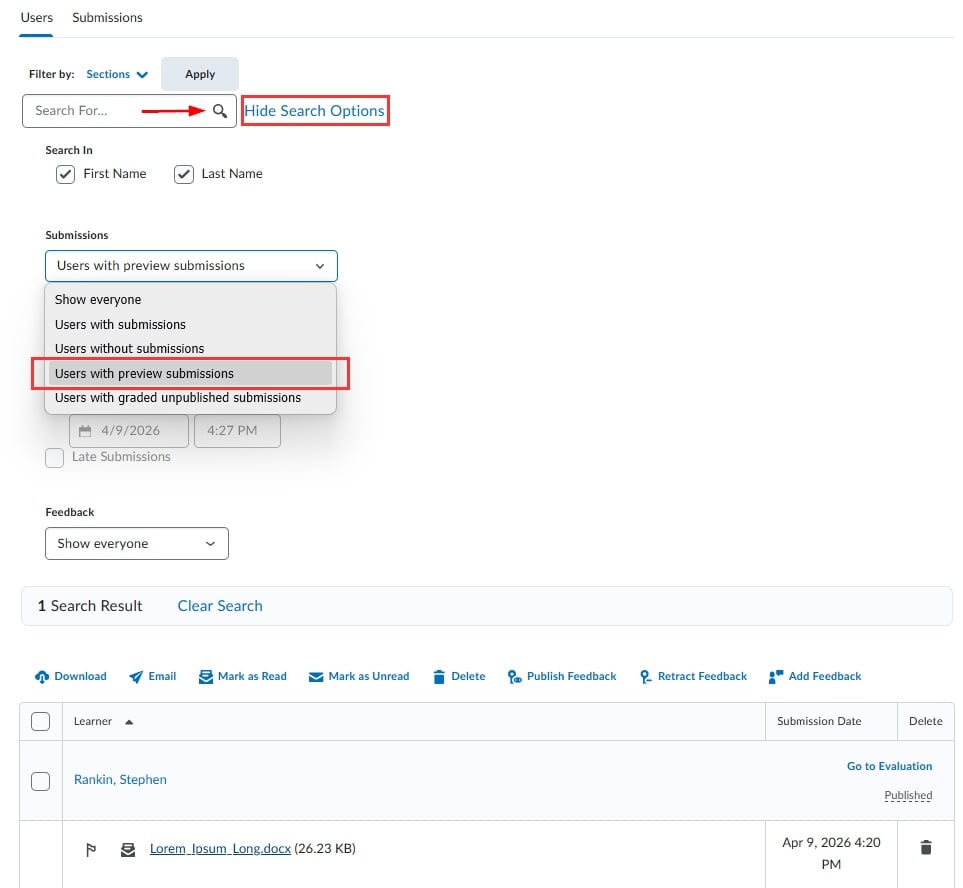
During evaluation, the evaluator can open the View Submissions area and select "Display Search Options" (showing as "Hide Search Options" since I have it expanded in the image below). Change Submissions to "Users with preview submissions" and select the magnifying glass to refresh the search:
The evaluator can select the document and proceed with a normal evaluation, including using the annotations tool.
After the evaluation is published, the user who submitted it can view their feedback by also going back to View Submissions > switch to show preview submissions > and select the Go to Evaluation text.
Hope that this may be an option for you! If you have any questions about this process just let us know.
~Stephen