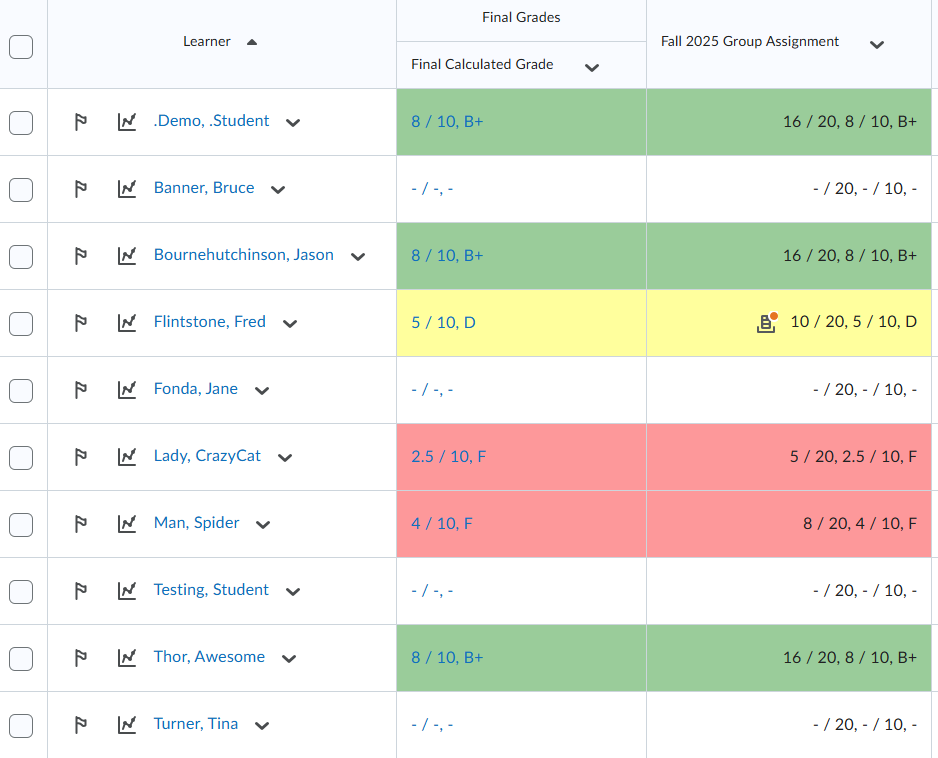
An instructor created a group assignment in which each student submitted their own individual work. However, when she graded the submissions, Brightspace automatically applied the same grade to all members of each group. She now needs to assign individual grades to each student.
To overwrite the auto‑applied group grades, the instructor followed these steps:
How to Manually Override Individual Grades (Gradebook Method)
- Go to Grades.
- Click Enter Grades.
- Locate the column for the assignment.
- Find the student whose grade needs to be updated.
- Click in their grade cell and enter the correct score.
- Press Enter or click Save.
- Repeat for each student who requires an adjusted grade.
The instructor was also given this information:
- If you return to Evaluation on the assignment and republish the group grade, Brightspace may overwrite the individual overrides and assign the same grade to every group member again.
- After overriding individual grades, do not republish the group evaluation unless you intend to reset all students to the same score.
- Brightspace does not allow converting an existing group assignment into an individual assignment once student submissions have been made.
Unfortunately, when the instructor changes the score of one student it still changes all the students' scores to the same grade.
Any recommendations?
Thank you very much for your guidance!