I would like to change the image in the Modules to match the image that I chose for the course header?
Hello @Brenda.B.5919,
The VTOC's module imagery inherits from either
So if there is an image present in the module description that will take precedent over the banner image.
For more details, please see the Set a default tile image section of the documentation about Using the Visual Table of Contents (TOC) Widget
Note: if you've overwritten the banner image of the course, and you are expecting the updated course banner image to render in place of the default because option 2 does not apply, or you have explicitly configured an override to use the updated image, try clearing cache (CTRL + F5) and refresh the webpage.
I hope that helps!
Jeffrey
Learning Administration Manager
Hi Jeffrey.
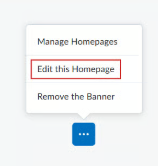
Thank you for your response to my question. In looking at the Help Page I noted that I do not have the Edit the Homepage option at the bottom of the screen as shown below. I only have the option to Remove the Browser.
I must have made the edit incorrectly when I changed the Course home page banner image.
Kind Regards.
Brenda
Hi @Brenda.B.5919
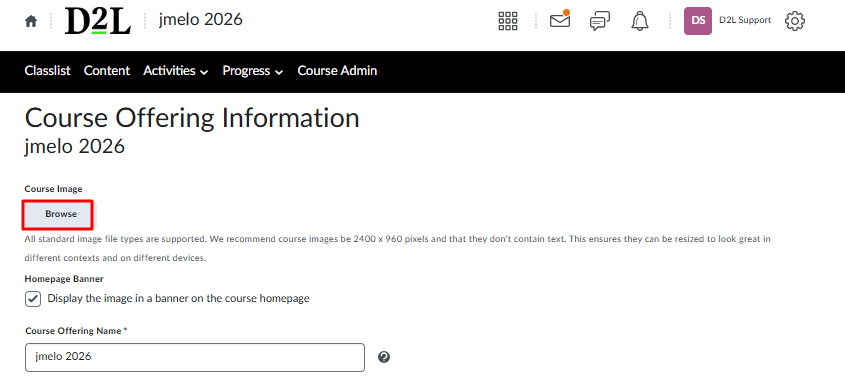
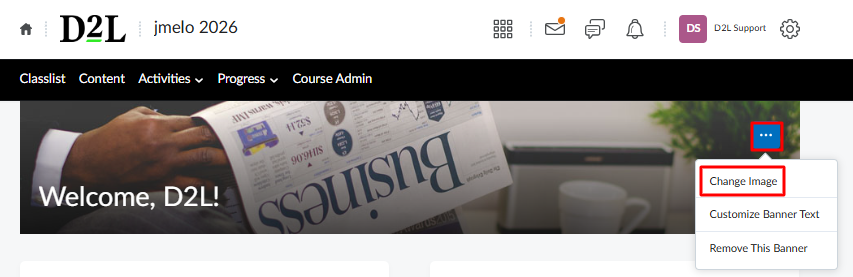
The Course Image which applies to the Homepage Banner and from which the VTOC may inherit is not a property of the Homepage object; therefore, the click path (Edit this Homepage) you have taken a screenshot of is not the place from which you'll want to update the image. Rather, for roles with sufficient permissions, it can be found/modified from either
Here are sample screenshots of each of those areas, respectively:
Course Offering Information page (accessible via Course Admin)
Banner Settings menu (accessible via Course Banner)
If you do not see either of those options, it may be that the role you are in within the org unit (course) you're targeting is a role which lacks these permissions.
JeffreyLearning Administration Manager
Connect with our Known and Fixed Issue information to learn about improvements made to Brightspace.
Connect with leaders in pedagogy, accessibility, learning experience design and more
The Accessibility category serves as a single point of access to three avenues in Brightspace Community leading to the Accessibility Academy, Accessibility Library and Accessibility Discussions. These avenues offer courses and articles about accessibility to enhance accessibility knowledge and a group of accessibility enthusiasts to stay connected with.
Have questions about how to use Community? Stay tuned with updates, feedback opportunities and more for the Community here!
Connect with and ask questions on how to best use the Brightspace Product to transform the way your users learn!
Connect with product experts to learn more about tools frequently used by Brightspace Developers such as APIs and integrations!
Want to learn more about Brightspace Partners and Integrations? This is the place to be!
Stay up to date with product updates and announcements in this category.
Connect with our release information to learn about monthly improvements and updates to Brightspace.
Learn more about all the upskilling opportunities with courses and resources offered via the Brightspace Learning Center, Brightspace Guided Training and other training opportunities!