Hi, @Daniel.M.1296.
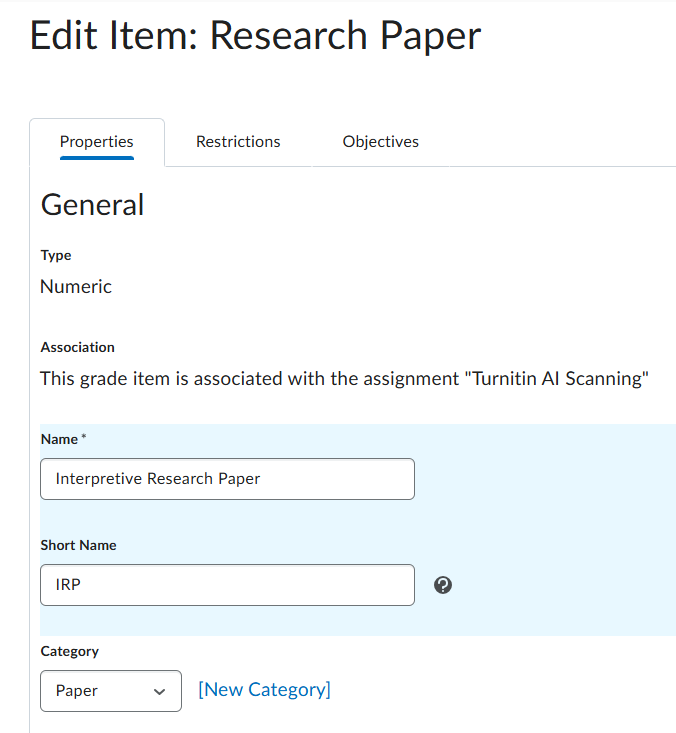
I go to Grades > Manage Grades, click the downwards-facing arrow and select Edit. On the grade item edit screen there's a field labelled "Short Name"—I enter abbreviated names or initials there. The short name displays in the instructor view of Grades. The original name displays in the student view.
To edit them all at once instead of one by one, on the Manage Grades page, tick the box at the top left corner of the chart to select all, then click Bulk Edit. That will give you a chart that includes a column for short names—you can add them and then click the Save button at the bottom of the page.
See https://community.d2l.com/brightspace/kb/articles/3553-manage-grades-in-the-grades-tool for additional info.
Hi @Daniel.M.1296
You can do this a few ways:
Option 1: Use the Short Name field when entering in grades to reduce the scrolling. If entered, these will display instead of the grade item full name.
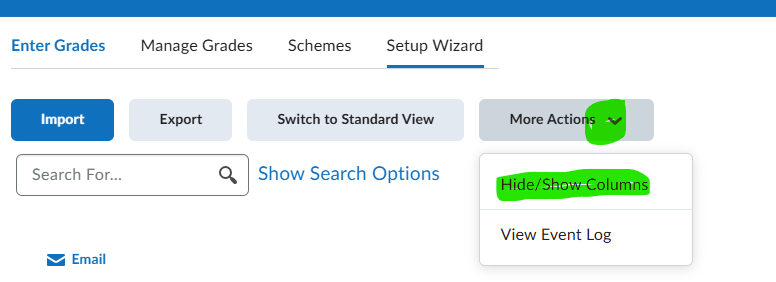
Option 2: Use Hide/Show Columns (these are sweet!) Hide the columns you dont want to view and then your page isnt as large to scroll through. Then, when you want to see those again - just add them back. This works great for instructors sharing a course and have different areas to grade, or also at the beginning of a term where you dont want to see the final or midterm.
Connect with our Known and Fixed Issue information to learn about improvements made to Brightspace.
Connect with leaders in pedagogy, accessibility, learning experience design and more
The Accessibility category serves as a single point of access to three avenues in Brightspace Community leading to the Accessibility Academy, Accessibility Library and Accessibility Discussions. These avenues offer courses and articles about accessibility to enhance accessibility knowledge and a group of accessibility enthusiasts to stay connected with.
Have questions about how to use Community? Stay tuned with updates, feedback opportunities and more for the Community here!
Connect with and ask questions on how to best use the Brightspace Product to transform the way your users learn!
Connect with product experts to learn more about tools frequently used by Brightspace Developers such as APIs and integrations!
Want to learn more about Brightspace Partners and Integrations? This is the place to be!
Stay up to date with product updates and announcements in this category.
Connect with our release information to learn about monthly improvements and updates to Brightspace.
Learn more about all the upskilling opportunities with courses and resources offered via the Brightspace Learning Center, Brightspace Guided Training and other training opportunities!