Best Of
Re: Embed SCORM in an HTML page
Hi @Steve.B.446,
With the new SCORM upload method, it's not possible to embed SCORM directly onto a content topic page.
If you'd like to provide additional context for your SCORM package, you can still do so by editing the SCORM topic itself. You'll find a "Description" tab where you can add any contextual information you need. This description will appear alongside the SCORM activity.
Let me know if you have any other questions or need further clarification!

Re: How can I see statistics available for each criteria in rubrics on written response questions?
Hi Shelley,
Thanks again for your follow-up and for testing further.
You're right! The July 2025 update introduced rubric statistics for written response (WR) questions in quizzes, including both overall and criteria-level statistics. However, the visibility of these statistics depends on a few key factors.
What You Should See
If a rubric is attached to a WR question and fully assessed per criterion, instructors should be able to view the overall rubric scores for the question and break them down by each criterion, showing how learners performed across levels.
Step-by-Step: Where to Look
According to D2L’s Evaluate quizzes - Brightspace, here’s how to access rubric data:
- Go to your course homepage and navigate to Quizzes.
- Click the dropdown arrow next to the quiz and select Grade.
- From the Questions tab, locate the written response question.
- Click on the question to view all learner responses.
- If rubrics were used and fully assessed, you should see rubric statistics including:
- Overall rubric score distribution
- Criteria-level breakdown (if available)
This feature is still being refined, and some users have reported that criteria-level stats may not yet be visible in all views. There is currently no separate dashboard or export for rubric criteria stats; everything is accessed through the quiz evaluation interface.
Let me know if that answers your question!
Best regards,
Raquel

Re: Should be able to link to activity from Grade List.
Hi Bob,
Under "Enter Grades", with every submission, you can click on it and that will take you directly to the student's assessable item.
However, this functionality does not exist for the "Manage Grades" item. This feature has been requested on a PIE item (D9813) and right now, its status is set to: "Feedback Review Window".
It can be found here: Adding the assignment name to Manage Grades: View Submission
It's advisable to vote on it to voice your opinion and give more visibility to this request.
Best regards,
Gabriel

Re: Bring back the indication of completed work in the Content Tab
Hi @Bob.S.3718,
Thank you for reaching out to the Brightspace Community!
I tested this on the latest Brightspace version 20.25.7 (July 2025 build), and I'm still able to see the completion status of assignment content topics.
Please refer to the following screenshot:
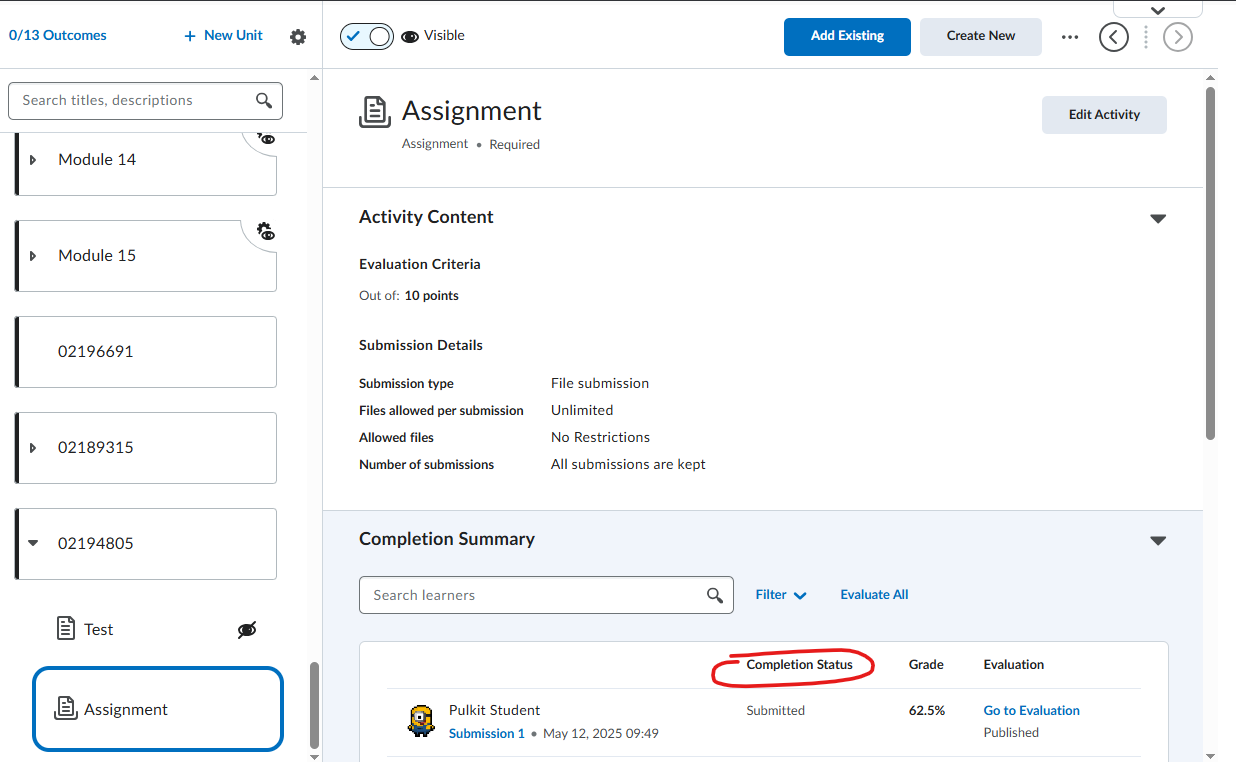
Could you please share a screenshot of what you're seeing? Be sure to redact any personally identifiable information (PII) before sharing.
Should you have any questions, please do not hesitate to contact us.
Regards,
Pulkit

Re: How to change settings in new exam view?
Hello @DAVID.L.935
Thank you for your question.
The New Quiz Evaluation Experience is now enabled by default for all clients. As a result, the legacy quiz evaluation experience has been removed across all Brightspace environments.
One of the key improvements in this update is the introduction of the full HTML editor for question-level feedback. This aligns with the editors already available for Attempt Feedback and Overall Feedback, including support for the equation editor and file upload features.
Previously, instructors were limited to a basic inline HTML editor when providing feedback on individual questions, which offered minimal formatting options. With the new experience, instructors can now:
- Upload supporting files directly
- Insert equations with ease
- Use richer formatting and multimedia tools for more effective feedback
Here's an article on this. This feature implements the following PIE item-
When you manually grade a question, the label changes from "(auto-graded)" to "(graded by [instructor name])". This is currently the expected behavior in Brightspace.
I understand this creates an inconvenience in your specific scenario, as it requires scrolling to the end of the page to identify manually graded questions. At this time, there is no built-in way to sort or filter manually graded questions within a quiz attempt. We apologize for the inconvenience this may cause.
We truly value your feedback and are always looking to improve the Brightspace experience. If you have suggestions or feature requests, I encourage you to submit them to our Product Idea Exchange (PIE) on the Brightspace Community. This platform allows users to share ideas directly with our Product Development team.
You can learn more about it here-
Please note that PIE is currently undergoing a transition. New submissions are temporarily paused while we prepare to launch an improved workflow. You’ll be able to submit new ideas once the enhanced PIE experience goes live on August 5th. Please see this for more information.

Re: linking between modules
Hello @Sandra.D.880
Thanks for reaching out via the Brightspace Community!
If a user is not enrolled in the course from which the content module URL originates, they will encounter a "Not Authorized" error when attempting to access the link from another course.
I recommend copying the required content topic/module from the source course into the current course using the Import/Export/Copy Components tool.
You can find more information about this process in the following Community article:
https://community.d2l.com/brightspace/kb/articles/16767-about-import-export-copy-components
If you have any further questions or concerns, please feel free to create a support case with us so we can look into it in more detail.
Best regards,
Prithvi Anvekar
Product Support Specialist
D2L Corporation

linking between modules
Is it possible to add a link within a module to another module? Specifically, I have an academic integrity module for which I would like to provide a direct link from our orientation module.

Re: linking between modules
That instruction does not address linking from one module to another separate module. I have tried to add the module url as it appears to me, but when others try to use that link they receive an error message: "Not authorised" if they are not enrolled in the linked module. Is there any way to link from one module to another for enrolment?
Re: Retrieve Rubric associated with Quiz Question
Okay, thanks for confirming!
I will set a calendar reminder for myself to create this new PIE item when PIE relaunches on August 5th then. :)
Re: Pulse app functionality
Hi Ryan,
Thank you for asking this question. I understand you are a new user.
The Brightspace Pulse app is a mobile companion to the Brightspace learning management system (LMS), designed to help students stay organized, connected, and on top of their coursework. It’s available for both iOS and Android devices.
What the Pulse App Does
Brightspace Pulse provides:
- Real-time updates on announcements, grades, and course content
- A unified calendar view of all your courses
- Reminders for upcoming assignments, quizzes, and deadlines
- Access to course materials like readings and evaluations
- Push notifications for changes like class cancellations or new grades
How to Use the Brightspace Pulse App
Here’s a step-by-step guide:
- Download the App
- Available on the App Store and Google Play.
- Log In
- Open the app and tap Get Started.
- Search for your institution (e.g., "University of Waterloo").
- Log in using your school credentials (often via Single Sign-On).
- Explore the Dashboard
- View a weekly schedule of upcoming tasks.
- Tap on any item to see more details or access the content.
- Access Course Content
- Navigate to your courses to view readings, assignments, and announcements.
- Some content may open in your mobile browser.
- Submit Assignments
- You can upload files or photos directly from your phone to assignment folders.
- Stay Notified
- Enable push notifications to get alerts about due dates, grades, and announcements.
- Customize Your View
- Add personal events, filter by course, and adjust settings like the start of the week.
Helpful Video Tutorials
- Brightspace Pulse App Overview (6 min)
- How to Use Brightspace Pulse (2.5 min)
- Navigation and Features (3 min)
—
Let me explain the question you asked:
The Brightspace Pulse app is primarily designed as a companion app, not a complete replacement for the browser version. Its main strengths are:
- Viewing upcoming deadlines
- Receiving notifications
- Checking grades and announcements
- Accessing some course content
However, it does not support full course navigation or interaction like Canvas. When you try to access certain features (like "Current Classes"), it redirects you to the mobile browser version of Brightspace, which can feel clunky and inconsistent.
Tips to Improve Your Experience
Here are a few ways to make the most of the Pulse app:
- Use Pulse for Quick Checks
- Stick to checking due dates, announcements, and grades.
- Use it as a notification hub rather than a complete course portal.
- Use a Mobile Browser for Full Access
- For tasks like submitting assignments, participating in discussions, or viewing complex content, use a browser like Chrome or Safari on your phone.
- You can bookmark your institution’s Brightspace login page for quicker access.
- Enable Notifications
- Go to the app’s settings and turn on push notifications for announcements, grades, and due dates. This is where Pulse shines.
- Stay Logged In (If Possible)
- Unfortunately, some institutions have strict Single Sign-On (SSO) policies that log you out frequently. If your school supports it, enabling "Remember Me" should help, but it’s unreliable.
- Try the Desktop Site on Mobile
- If the mobile version is too limited, you can request the site's desktop version in your browser settings. It’s not perfect, but sometimes more functional.
I hope this information will help.
Thank you,
Furkan
