How to minimise width of columns in grade book to view results on one screen

Answers
-
Hi, @Daniel.M.1296.
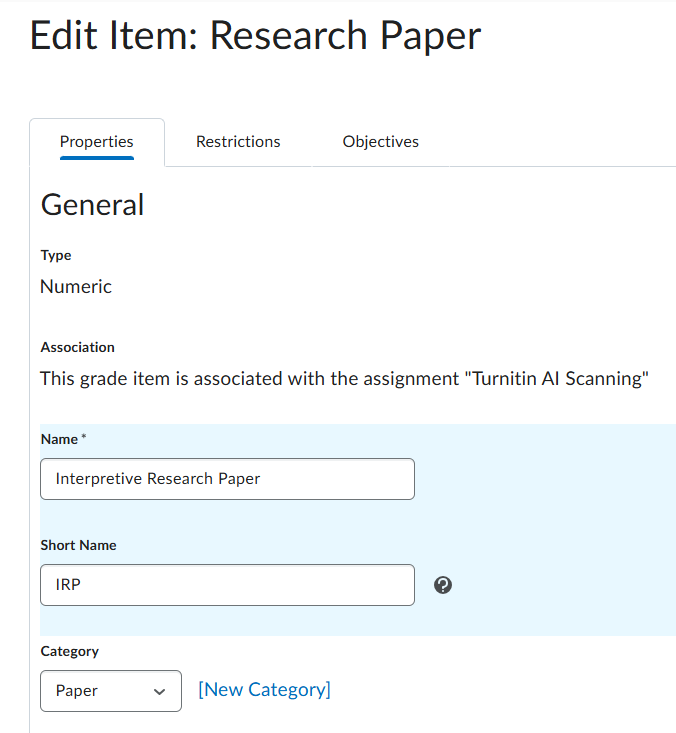
I go to Grades > Manage Grades, click the downwards-facing arrow and select Edit. On the grade item edit screen there's a field labelled "Short Name"—I enter abbreviated names or initials there. The short name displays in the instructor view of Grades. The original name displays in the student view.
To edit them all at once instead of one by one, on the Manage Grades page, tick the box at the top left corner of the chart to select all, then click Bulk Edit. That will give you a chart that includes a column for short names—you can add them and then click the Save button at the bottom of the page.
See for additional info.
-
You can do this a few ways:
Option 1: Use the Short Name field when entering in grades to reduce the scrolling. If entered, these will display instead of the grade item full name.

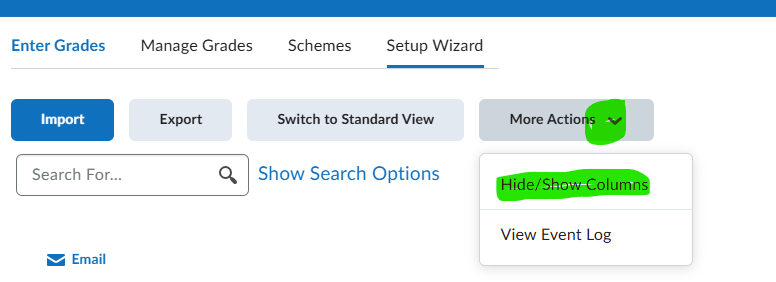
Option 2: Use Hide/Show Columns (these are sweet!) Hide the columns you dont want to view and then your page isnt as large to scroll through. Then, when you want to see those again - just add them back. This works great for instructors sharing a course and have different areas to grade, or also at the beginning of a term where you dont want to see the final or midterm.