How do I make a batch of documents visible?
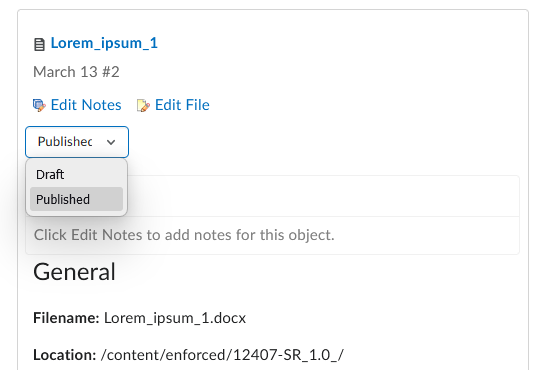
When I upload a batch of pdf documents, all of them are invisible to students (as can be seen in the attached screenshot). Is there a way to make them all visible at once rather than having to select each document one at a time and click the visibility button?
Answers
-
Hello @Kenith.S.2118,
Thank you for your question.
As @Chris.S.534 mentioned in a previous post where you asked this, there's a configuration variable available (d2l.Tools.Content.Lessons.NewTopicsAreVisibleByDefault) which your on-site Brightspace administrator can potentially enable. This would automatically make newly uploaded content items visible by default.
Barring that config variable being updated, activating these content items through Course Builder would likely be a somewhat faster way to switch the visibility.
To access Course Builder go to your Course Admin area and select Course Builder under Site Resources. Expand the module your items are in, and on the right-side pane, you can select between Draft (hidden) and Published (visible):
Hope that this helps!
~Stephen
-
I did as you suggested and clicked "Course Admin", selected "Course Builder", then expanded the module. But then I still need to select each item one at a time then click "Published". I don't see how that speeds up my task insofar as I still need to select one item at a time.