upload a new version of a scorm file

Answers
-
Hello @nichole.g.355, thanks for your question!
As an administrator, to update a SCORM file with a new version, you should be able to go to any course offering, and navigate to Content.
The next steps depend on the content experience you're using:
Classic Content:
- Within Classic Content, go to any module and select Upload/Create (the blue button, if it's named slightly different in your environment)
New Content:
- In New Content, go to any module and select Add Existing (also the blue button)
Then:
- Select New SCORM/xAPI Object
- Search for the SCORM file you need to update and then select the three dots to the right of the item. Choose Manage Versions
- Upload the new version. Once it's processed, you can then select the Publish button to make that new version the current one
Hope that this helps! If you have any questions please let us know.
~Stephen
-
It is published in the Manage versions but it is not updated for students. Do I need to do something to get the new version to students?
-
Hello @nichole.g.355,
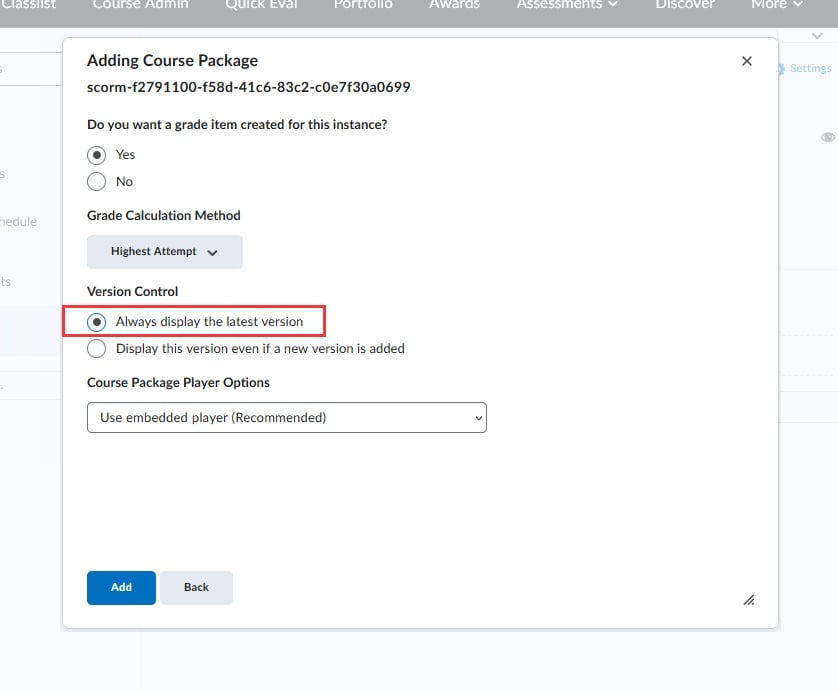
If users are not seeing the updated version, it's likely that when the SCORM file was added to the content area, it was locked to the version loaded at that time.
You will likely need to go back and add the new SCORM package. When you go through the steps to add the updated SCORM file, I would suggest selecting, under Version Control, "Always display the latest version" so that it's dynamically linked when an updated file is added: