Best Of
Re: Using a variable in HTML-Template-Library
Hello,
In my experience, as soon as you open the file from the Brightspace shared files area with the edit command, those {variables} become unusable.
Once the file is uploaded, do not open it! If you do, you'll have to re-upload the file for it to work. I haven't found a simpler workaround for this, I hope someone else can offer another solution on this thread!

Re: Ability to export a title list of courses from a term
Hello Chris,
I would use the Org Unit Editor to find the OrgUnitID of your term. For us, our Spring/Summer Semester ID is 572802.

Then I would use the OrganizationalUnitParents dataset to find all courses under that parent.

And finally, I would use the OrganizatinalUnits dataset to match these numbers with the titles.

Hope that helps!
Mike
Re: Merging accounts
Hello @Moayyad.A.3050, thanks for your question!
You could look at using the account merge tool, which was released earlier this year.
Please see HERE for further information.
It's important to note that this tool won't copy activity/progress/grades so it may not provide the full capability you're looking for. For example if Account A was merged into Account B, the new merged Account B won't have grades from Account A.
Hope that this helps!
~Stephen

Re: Potential to see Letter Grade and Percentage for Final Calculated Grade
Hi @Rachel.T.9262!
Thank you for reaching out to the Brightspace Community!
Brightspace doesn’t support displaying both a percentage and a letter grade within a single grade scheme.
That said, you can get close by using Student Display Options:
- Go to Grades
- Navigate to Settings
- Open the Org Unit Display Options tab
- Under Student View Display Options, locate Grade Details
- Check both:
- Points grade (or weighted equivalent)
- Grade scheme symbol
- For the Final Calculated Grade, ensure it is set to use a Letter Grade scheme
If your gradebook totals 100%, the numeric value will appear as #/100, which effectively gives students the equivalent of a percentage alongside the letter grade.
I’ve included a screenshot below to show how this would appear in the Gradebook.
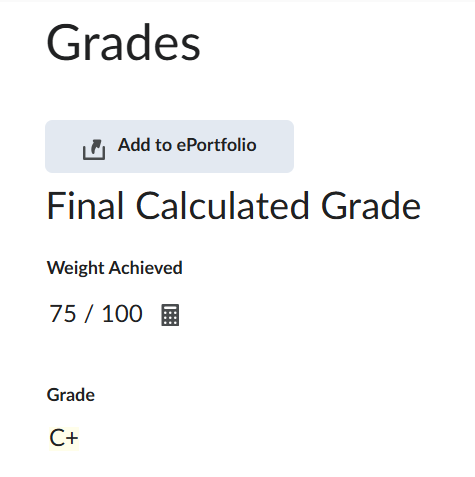
We hope this helps, and please feel welcome to reach out with more questions.
Best regards,
Carolina A.

Re: Is there a way to identify courses using HTML pages in Brightspace?
Hello Heather,
Thanks for reaching out with your question regarding HTML content usage across your course shells.
The best dataset that you can refer to for obtaining insight on HTML content usage, is our Content Objects dataset: https://community.d2l.com/brightspace/kb/articles/4713-content-data-sets#content-objects
It logs every content object that was created and indicates the ContentObjectType and the OrgUnitId where the content resides in. By noting the unique number of org units in the report, you will be able to identify how many different org units use HTML content within the course.
I hope this information helps. Kindly let me know if you have any further questions or concerns.
Best regards,
Abrar

Re: Instructors do not have the "create" button in the awards tool.
Hello @Lynn.L.12, thanks for your question!
At a minimum, these would be the required permissions for the Organization and Course Offering org unit types for your instructor role to have access to the create option for badges and certificates:
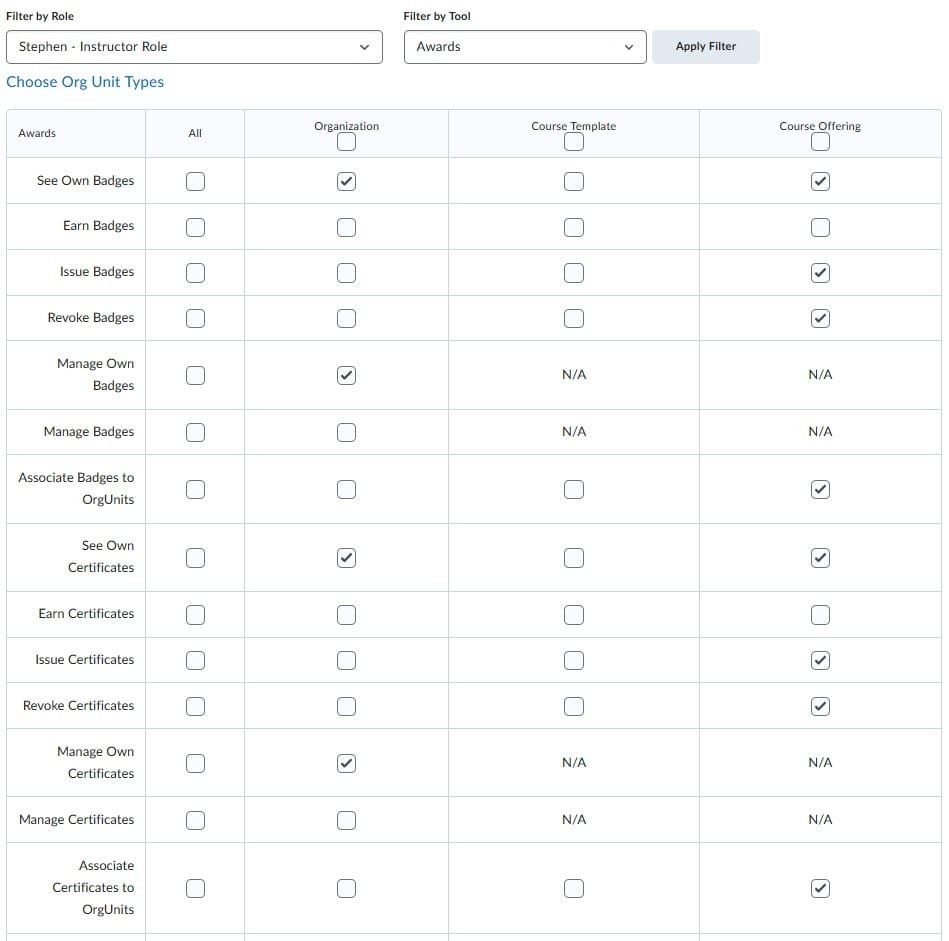
Hopefully this is what you'll need. Please do let us know if this helps solve the concern, or if they are still not seeing the create option.
~Stephen
Content Experience Resources Page
Exciting News!
We’ve launched a brand-new Content Experience Resources page to help you get the most out of the Brightspace content tools.
On this page, you’ll find:
- Getting Started Guides for admins, instructors, and learners
- Customer Success Stories
- What’s New highlights and release updates to stay current
- A comprehensive FAQ
- A Content Tool Comparison guide
…and more resources coming soon!
We’ll keep this page updated regularly, so be sure to bookmark it.

Re: How a quiz can be made to one student only so it's not calculated in other students' final grades
Hi @Star.K.7489,
Thank you for reaching out to the Brightspace Community!
Please note that you can exclude the grade item of the quiz from the Final Grade Calculation by following these steps:
From the Grades tool > Manage Grades tab, select the grade item of the quiz created for the student and then Edit the grade item. Then, from the Properties tab navigate to the Grading section and select the option Exclude from Final Grade Calculation. With this option, the grade item will be excluded from final grade calculation.

Additionally, you may go to the Restrictions tab and select the option Hide from Users so this grade item will not be visible to students.

You may find in our following documentation further details related to excluding a grade item from the Final Grade Calculation:
https://community.d2l.com/brightspace/kb/articles/3665-final-grades-that-include-exemptions#exclude-a-grade-item-from-the-final-grade-calculation
We hope this helps and please feel welcome to reach out with more questions!
Best regards

Re: Release Notes Updates
June 2026/20.26.06 Preview Release Notes are now live and ready for review! 🔍️
Please note, this is only a preview for the upcoming Brightspace version, which we will begin to roll out on June 4, 2026. All features described are subject to change before then.

Re: How do I link to a specific page inside of a PDF file from Content
Hi,
Can we know the answer to this question as I don't think we can follow the support cases. If there is, please advise!
Mona
