Best Of
Re: How do you delete an entire course from Brightspace?
Thanks Andrea, It worked like a charm.

Re: Registering account and OAuth 2.0
@Dung.N.19 You may want to submit a request to the MSU IT help desk to ask if students are able to make D2L API calls and to explain what data you want to access and for what purposes.

Re: Inline Feedback disappearing
We've just noticed this same behavior. Frustrating since that data is sometimes necessary for program assessments.

Re: Can I associate a selectbox grade item to a discussion topic?
@Richard.P.189 Maybe that grade book article I linked isn't completely accurate. I just tested with assignments, quizzes, and discussions and I was able to associate a selectbox grade item with assignments only.
Re: Can you share rubrics across courses?
Sharing department rubrics in Brightspace can be accomplished effectively while also maintaining their integrity. One of the most efficient ways to share rubrics is by using the "Export" and "Import" functionalities in Brightspace, which allow for the distribution of rubrics without the risk of unwanted edits. Here's a step-by-step guide on how to do this:
Exporting the Rubric:Navigate to the course where the rubric is currently located.Go to the Rubrics tool within the course.Find the rubric you want to share, and choose the option to "Export".This will download the rubric in a specific format that can be used within Brightspace (usually .csv or .zip).
Sharing the Exported Rubric File:Once the rubric is exported, you can share the file with your department through email, a shared network drive, or a secure file sharing service.It's essential to communicate that this rubric is a template and should not be edited directly in its shared form. Instead, instruct recipients to import the rubric into their own Brightspace course and make any course-specific modifications there.
Importing the Rubric into a New Course:Instructors within your department can then import the rubric into their own courses.They would go to the Rubrics tool in their course and select the option to "Import".They would then upload the file that was shared with them and import it into their course.
Locking the Rubric (if needed):If Brightspace at your institution supports rubric locking, you can lock the rubric to prevent changes. This might not be necessary if you trust the staff not to edit the master template and only edit their own imported versions.
Educating About Best Practices:It might be helpful to provide guidance on best practices for using shared department rubrics. For instance, encourage instructors to make a duplicate of the imported rubric and rename it for their course-specific adaptations, keeping the original template untouched for future use.
By following these steps, you ensure that the integrity of the department rubrics is maintained, and each instructor has the flexibility to adapt the rubric for their specific course needs.

Re: Are there suggested features/tools that support/map to UDL (universal design principles)?
Hi Kelly,
We design our system with UDL in mind. Here are some features that can help support learners with all abilities.

Re: Development time with Creator+
Hi Heather, great question! Internally at D2L our limited testing showed around 20% lower development time using Creator+ right after the launch so it might be better now. Recently one of our clients analyzed their development time using Creator+ and, good news, they also found it decreased ~25% (see the link below). Of course there are lots of variables in course development so results will vary. You mentioned Storyline which is one of the tools we've used in the past so I'd love to hear the difference there as well. One of the reasons why to use Creator+ is the tools are supposed to be easy to use compared to traditional methods of course development, we are happy they're helping!
Here is the article describing more findings:

Re: Issuing A Mass Brightspace Certificate
Hi Jocelyn
The Awards Tool allows you to award certificates individually but not in bulk. But there are a couple ways to achieve this if you have a list of Brightspace Usernames.
First, if you are comfortable using API calls (or know someone who is), you could use them to award a certificate using the UserId and AwardId values obtained from the Users and Award Objects data sets.
But you can take advantage of the Awards Tool and temporary enrollments using Bulk User Management.
- Create a course offering named "Certificate Awards Studio" or something clever.
- Within this new course, go to Course Admin > Awards > Course Awards and create your Certificate or add it to the course if it already exists and is shared/available (see )
- Once the certificate exists in your course, click Edit Properties > Create to create the Release Condition that decides when the certificate is to be awarded to a user.
- Set the Condition to Classlist > Role in Org Unit, and set the Criteria as Enrolled in current org unit as the role: Student (or some other non-cascading role of your choosing).
- Finally, use Admin Tools > Users > Bulk User Management to enroll your list of users into this course offering. Instructions for this are provided in a link on that page or you can look up the documentation here in Community.
Enrolling a user in this specified role will qualify them to receive the Award. Any cascading Administrators will not receive it as you specified a role to limit it to. Once that is done you can unenroll the list using Bulk User Management and the Award remains theirs.
Test with a single enrollment …a test user account that you can use to log into Brightspace and observe the Student's experience.
I hope that's helpful!
Matt
Learning Administration Manager

How can a learner print an entire module off brightspace, without printing individual html pages

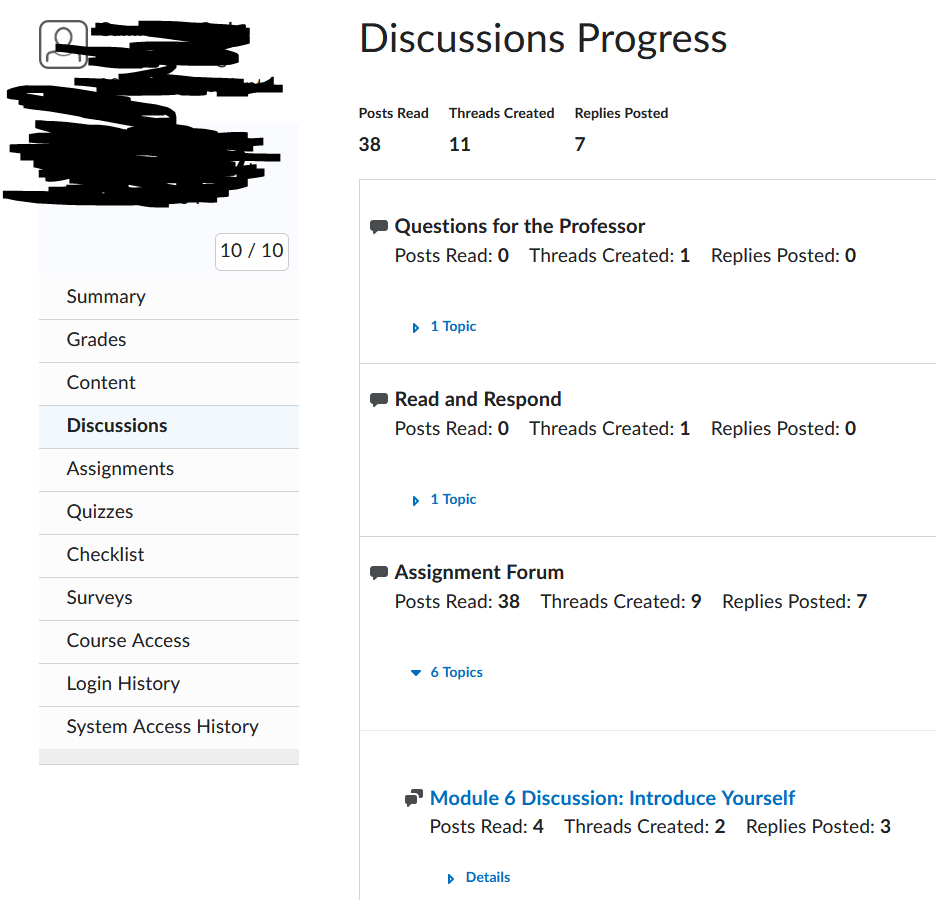
What permissions does Academic Support need to view Discussion Progress in Class Progress?
I currently have Sub-Admin access and in Class Progress I am able to view Discussion Progress - seeing how many posts a student has made on each Discussion and then how many replies as well & views on each discussion. Our Academic Support staff are unable to view Discussions Progress and I need to know if there is a simple area/permission I can give them to view that to aid students in completing all requirements?