Best Of
Re: Is there a way to restore Accidentally Deleted Modules
@Jeffrey.M.844 that's great to know. I thought once instructor's deleted content, it was gone forever. Thanks Jeffrey.

Is there a way to restore Accidentally Deleted Modules
Hello,
Is there a way to restore accidentally deleted modules/units?
Thank you!

Re: Is there a way to restore Accidentally Deleted Modules
Hello @Lance.B.8126,
For your reference, here is a link to a community article that describes How to Restore Data.
EXCERPT
{
Course items that cannot be restored within Brightspace will require a Support Request to be generated for the Service Request Catalog to review and process the restoration.
D2L Support can restore the following items within 30 days of being deleted. In your Data Restore Request, please include the type of object that needs restored and the required information so that Support can restore the object.
}
Based on what you are describing, here are the object types you'll want to indicate, and the require information you'll want to provide the D2L Support team when opening a support case.
Content Modules/Topics: Exact Module/Topic name(s) are required. Note: This applies to deleted items only since we cannot revert to a specific date/time.
Content (Manage) Files: File names and point in time when files existed are required.
I hope that helps!
Jeffrey

Re: Disabling communication when publishing
Thank you. Is this on a user by user basis rather than an academic disabling it for the group? I know under Subject admin, there is no notification setting, even when i change my role to Faculty Administration - only my personal one as a user
 Sue.S.4
Change default when displaying questions from a quiz attempt
When my students take a quiz, I don't want them to see the answers until everyone has taken the quiz, so I initially set the view in "Evaluation and Feedback" to 'no questions'. Later, when I change that to show all questions, it doesn't show the points the student got for each question! This is just crazy.
I dug about 8 clicks deep, and buried far down there is an option (that begins unchecked) that says "Show the learner’s grade for the displayed questions". I obviously do not want them to get a grade for each and every question separately, but I want them to see their points (say, 2 out of 3). Apparently, when D2L says "grade" they sometimes mean "points" (why not use the correct term?).
But the truly nasty thing is that the default keeps going back to NOT showing the points per question when the view is changed. Every time I give the quiz, I have to manually set the view to 'no questions'. There's an option to set a different view to kick in on a certain date, but I don't know in advance when I'll be done grading 100 quizzes with 40 or more questions per quiz. So I start with no questions and then go back and change it to a view where all questions are shown, but once again, the boobytrap means that students won't see the points ("grade") per question, unless I remember that the boobytrap is there and go back in to change it again.
How do I set this to a reasonable default, rather than having to fear the boobytrap every term for every quiz?

Re: Comment re status colours on PIE
Thank you so much for your feedback! We made some updates which should help make these status<>color mappings more intuitive.

Virtual Assistant/Lumi Chat open by default
Hi all,
If there's documentation on this please point me in the right direction, I couldn't find much this morning. Is there a way to have Lumi Chat expanded by default when users first login to Brightspace? We are having trouble getting students and faculty to use the tool (it would be SO useful if they would use it!) and it would be helpful if it could "introduce itself" on our behalf.

Re: New Quiz Experience
Hello @Timothy.C.2,
Thank you for contacting the Brightspace Community with your question.
We're pleased to hear that you're using the New Quiz Experience. You can still add images to both individual question feedback and overall feedback within this experience.
To do so, simply use the contextual menu that appears when you place your cursor in the Feedback field. This menu provides options to insert images.
For your reference, I’ve included an image below to illustrate how this works.
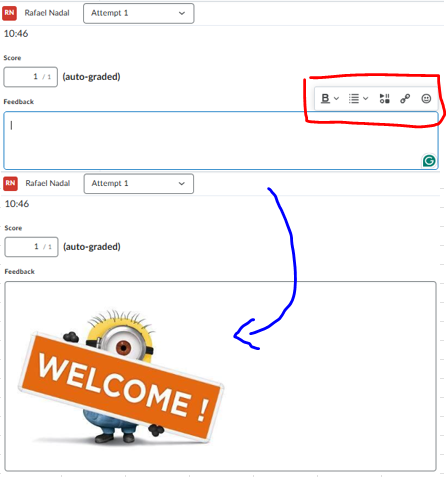
I hope this information is helpful.
Pilar Medina Norena
