By: Jackie Guan, Product Manager
Introducing Group Assignments in Advanced Assessment
We’re excited to announce a new enhancement to Advanced Assessment (AA): Group Assignments. Advanced Assessment was introduced in Oct 2024 with Co-Marking, Delegation and Multi-Evaluator capabilities to help admins and lead instructors better manage their evaluations for large classes. The release in 2024 was only for individual assignments and we are excited to bring the same Advanced Assessment features to Group Assignments. This update brings greater flexibility and completeness to your assessment workflows, ensuring that collaborative learning experiences are fully supported within Brightspace.
Note the original configuration variable d2l.Tools.Activities.AdvancedAssessmentsEnabled will also be used to control Group Assignment Advanced Assessment visibilities.
Why Group Assignments in Advanced Assessments?
Group assignments have long been a key feature in Brightspace, allowing learners to collaborate and submit work as a team. Instructors can evaluate the group collectively, providing shared feedback and grades.
However, until now, Advanced Assessment did not support group assignments, creating a gap for institutions that rely on AA workflows. This limitation was a blocker for many clients—especially those managing large classes—who wanted to combine the power of AA with group-based learning.
By introducing this feature, we’re removing that barrier and enabling a more complete, integrated experience.
How to Enable Group Assignments with Advanced Assessments
Group assignments are enabled through the Groups tool in Course Admin:
- Create your groups and categories using the Groups tool.
- Feel free to skip this step if you already have Groups created.
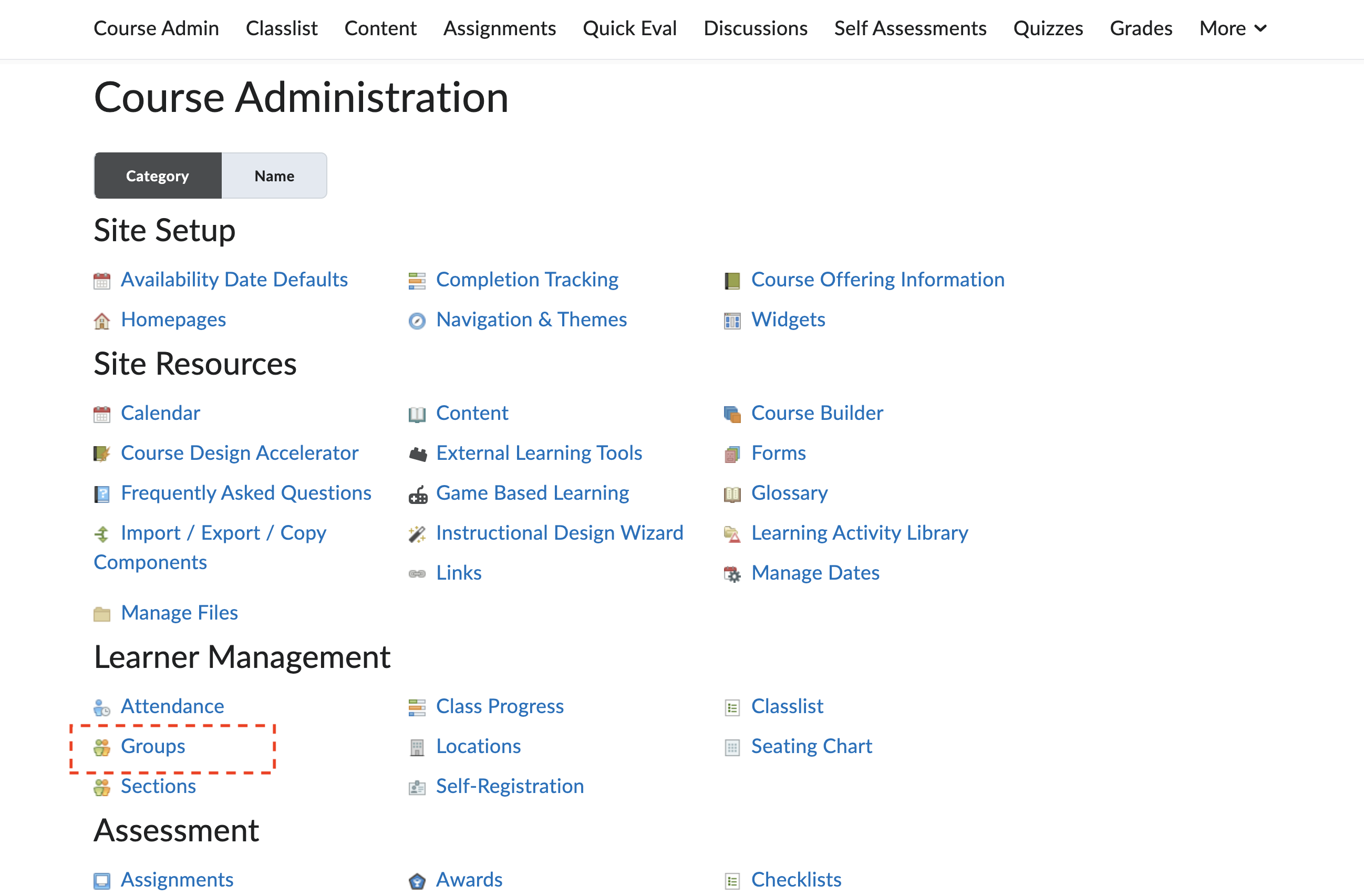
Figure: Course Admin tool to create Groups
- Ensure that the config variable d2l.Tools.Activities.AdvancedAssessmentsEnabled is enabled.
- When creating an assignment in the Assignment Creation page, select Group Assignment under the Submission & Completion tab.
- Note, you may need to select a Group Category during this time, if you wish to do so
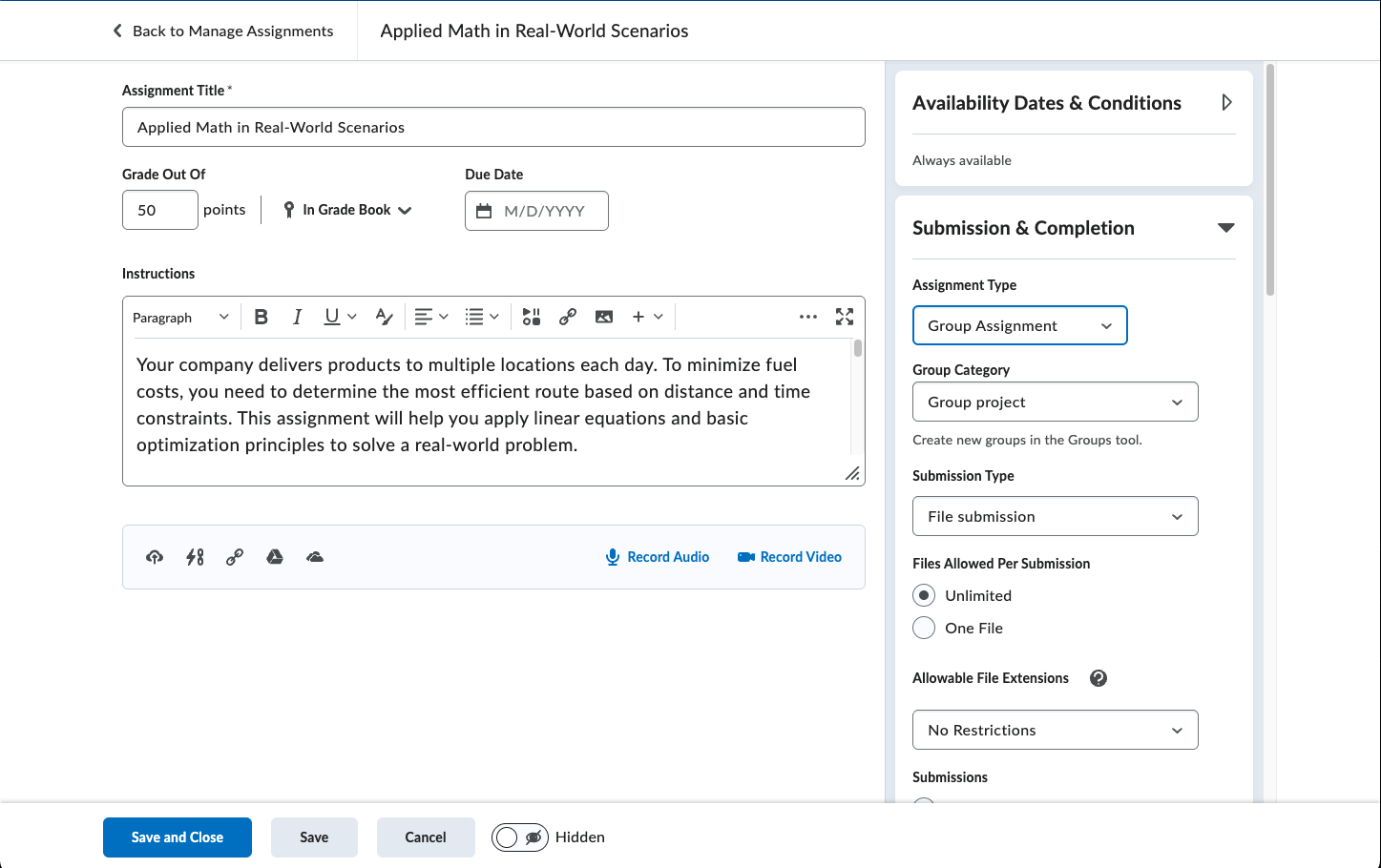
Figure: A view of Assignment Creation page with Group Assignments
Note: Advanced Assessment does not support activity creation through the legacy Groups workflow. If an assignment is created via the legacy tool, AA options will not be available until you return to the Edit Assignment page from the Assignment tool or Content tool.
3. In the Evaluation & Feedback Dropdown of the Assignment Creation page, under ‘Evaluators’, click ‘Select Evaluators’ to begin the Advanced Assessment workflows, just like in an individual assignment.
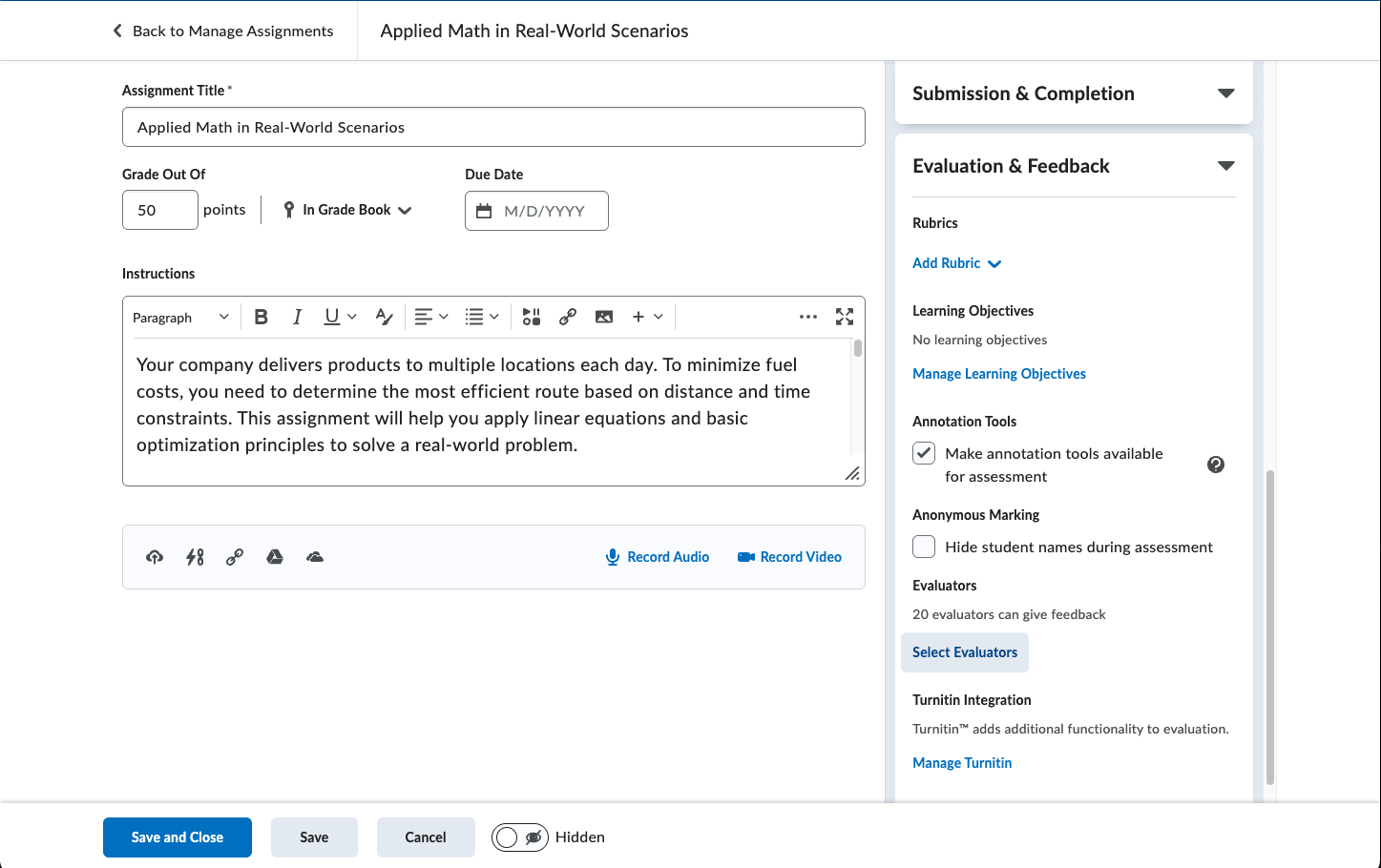
Figure: A view of the Evaluation & Feedback tab prior to enabling AA
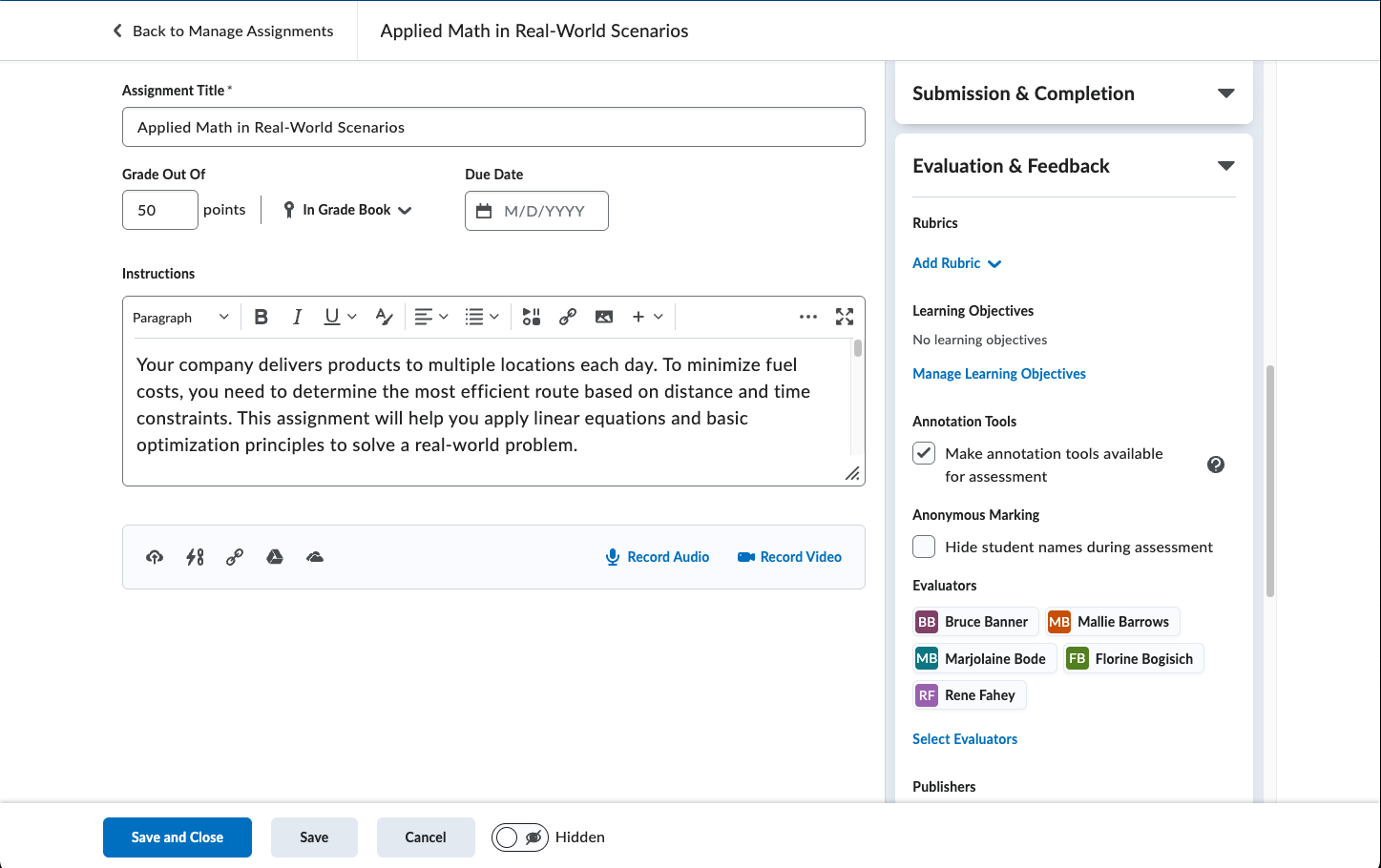
Figure: the Evaluation & Feedback tab after selecting Evaluators, with AA enabled
4. To finish setting up your Group Assignment in Advanced Assessment, continue through the workflow to select your publishers, choose your instructor to group allocations and coordinate your evaluators.
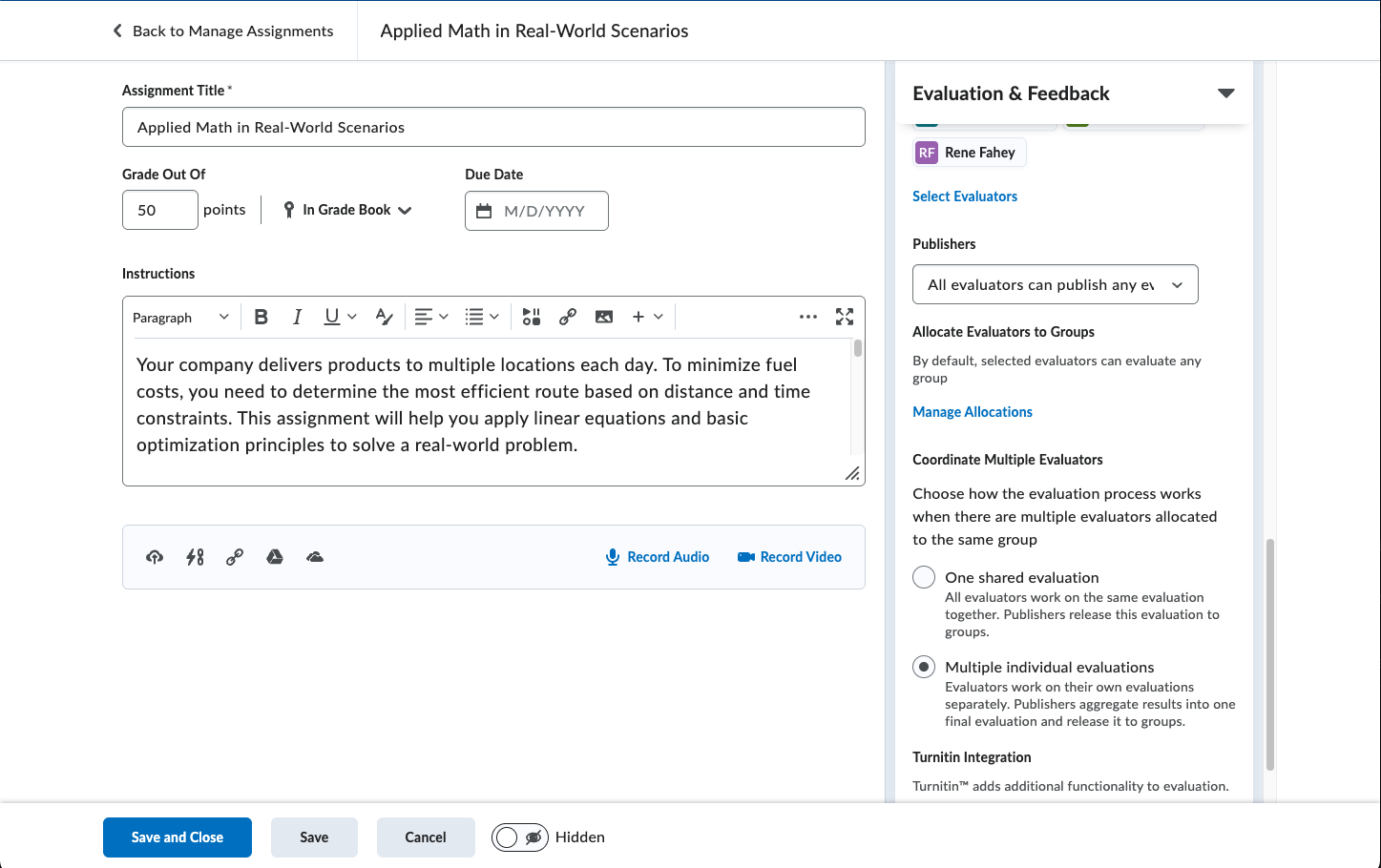
Figure: A view of the Evaluation & Feedback tab to choose one shared or multiple individual evaluation
Switching between Individual and Group Assignments
During the Assignment Creation process, if you switch between Individual and Group Assignment after interacting with the Allocation dialog, a confirmation prompt will appear. This ensures allocations aren’t accidentally overwritten. Note switching between Individual and Group Assignments will remove all previously adjusted Advanced Assessment settings.
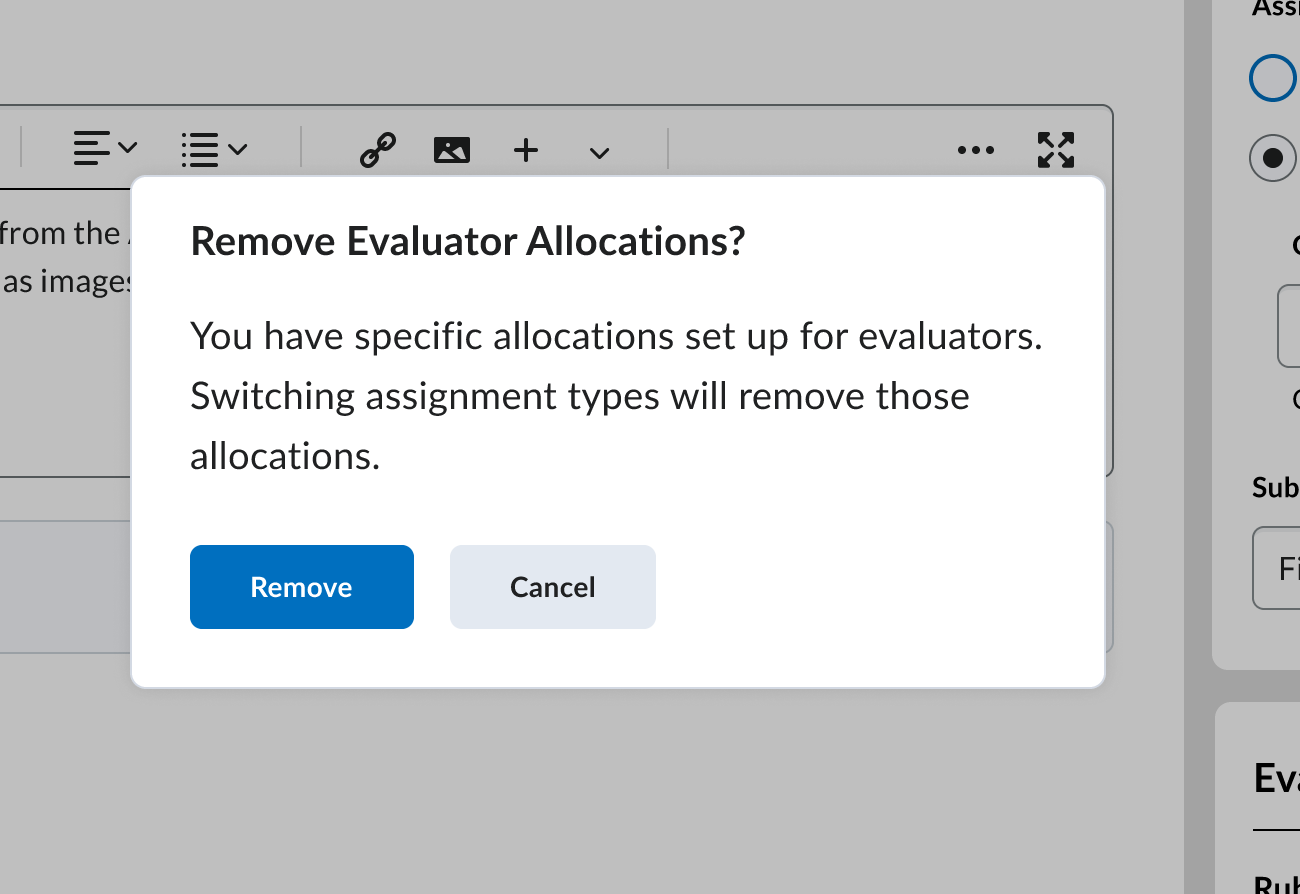
Figure: The confirmation dialog shown when switching between individual and group assignments
A separate dialog with similar wording will also appear when you switch between group categories however switching group categories will only remove the mapping allocations in the Allocation Dialog and other Advanced Assessment settings will not be impacted.
What’s New in the Manage Allocation Dialog?
The Manage Allocation Diaolog will continue to be the space for instructors and admins to review groups in the course and which instructor will be assigned to evaluate each group.
To reduce visual clutter, the group filter has been removed, leaving only the sections filter in the table. The Sort Groups button from A to Z, or Z to A, however still remains to allow for easy sorting and viewing of the groups.
Users can use the sections filter to specify the specific sections group members are enrolled in and select the appropriate instructor. Instructors enrolled in the filtered section will have a small tag under their name to highlight this information visually.
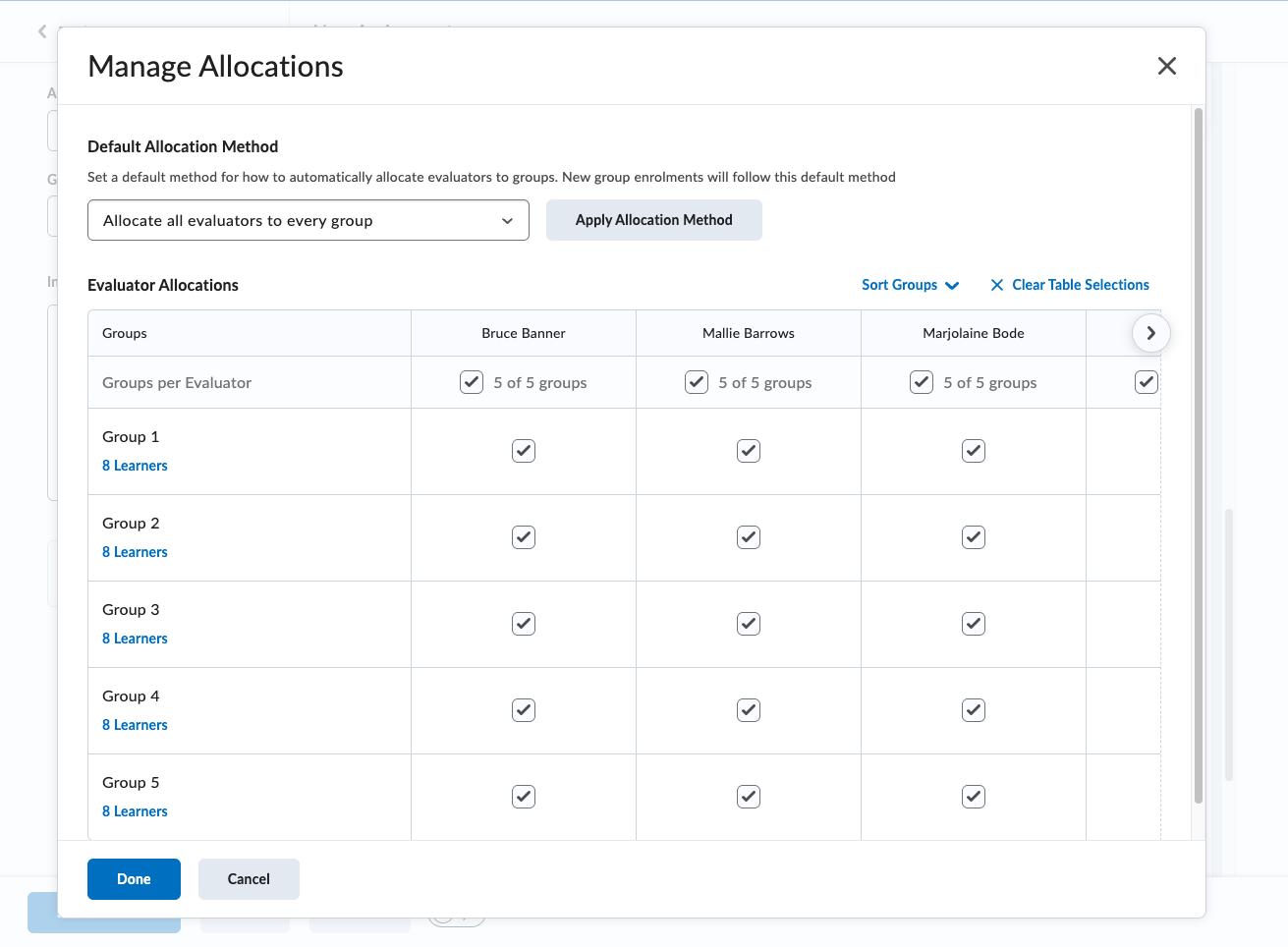
Figure: Manage Allocation Dialog without Sections
Note: To ensure that no groups are left behind without an evaluator, we allow all instructors enrolled in the course to evaluate all groups.
To review members of a group, users can click into the number of learners shown for each group in the Manage Allocation dialog to get a detailed look
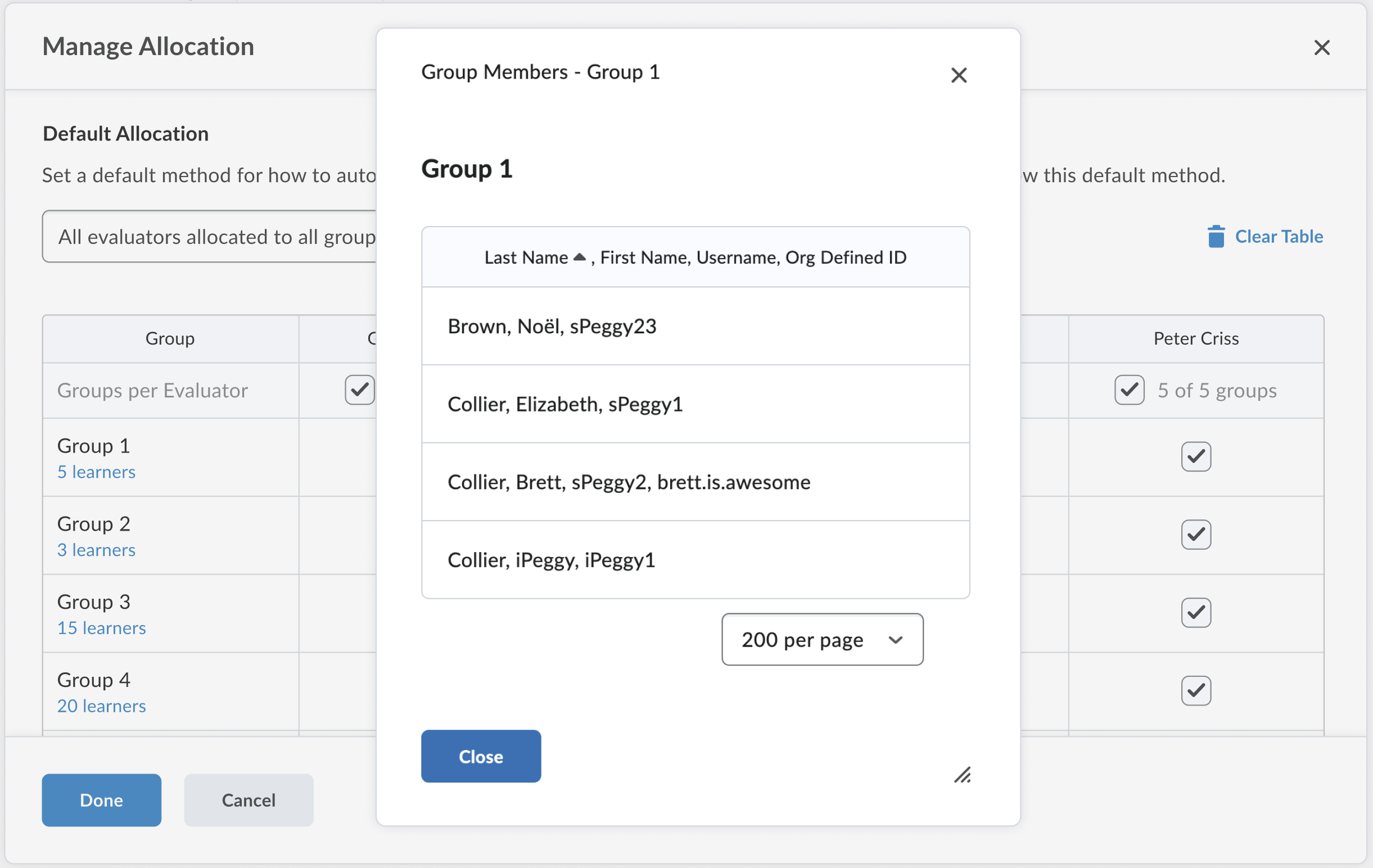
Figure, Viewing names of Group members in the Manage Allocation Dialog
Other Features
- Manual publisher selection does not require an instructor to be enrolled in all sections.
- Instructors evaluating Group Assignments will be able to take advantage of the One shared evaluation and Multiple individual evaluations The screenshots below show an example of Group Assignments in Assignment evaluation with the two types of evaluation modes.
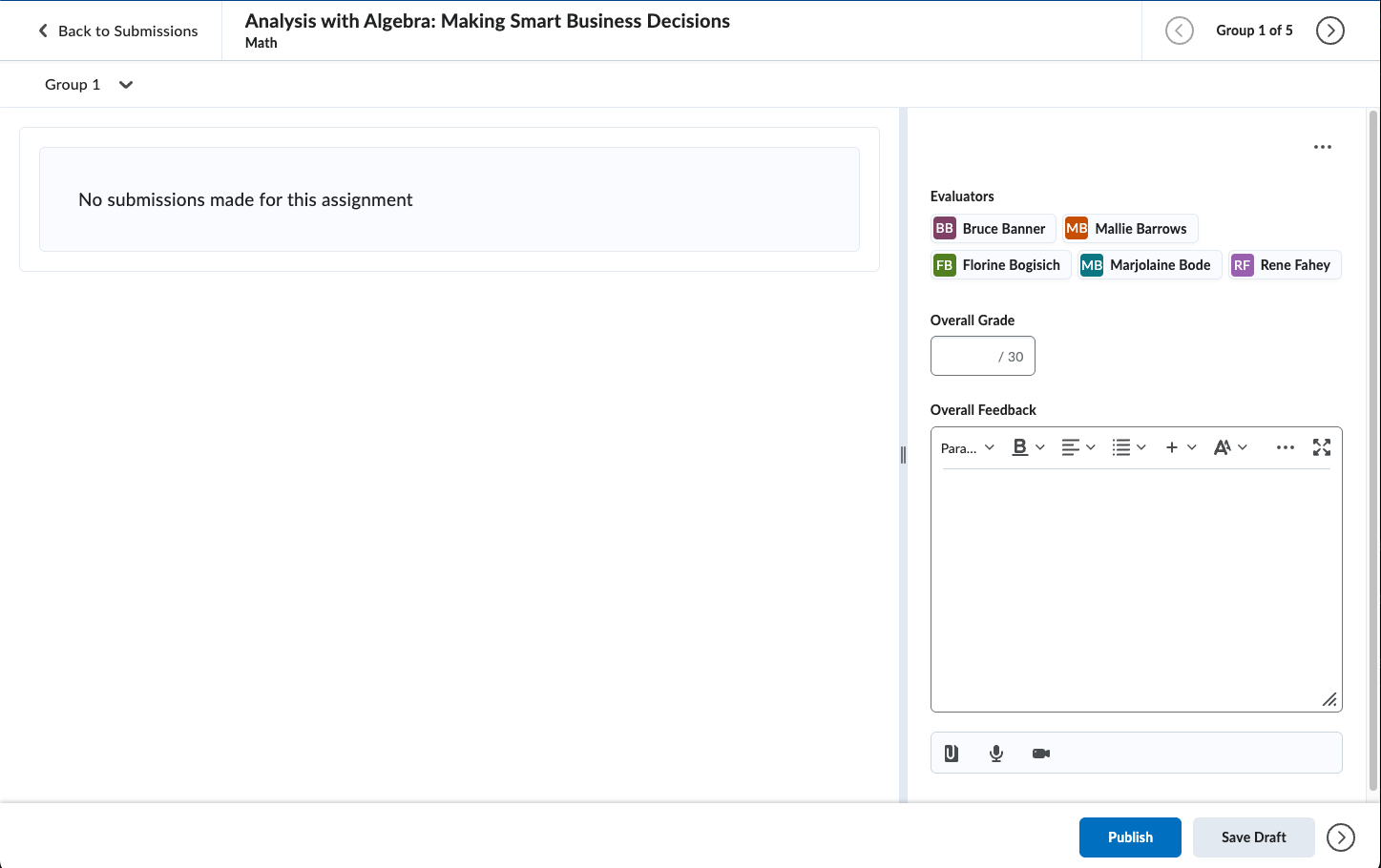
Figure: One shared evaluation with Group Assignments
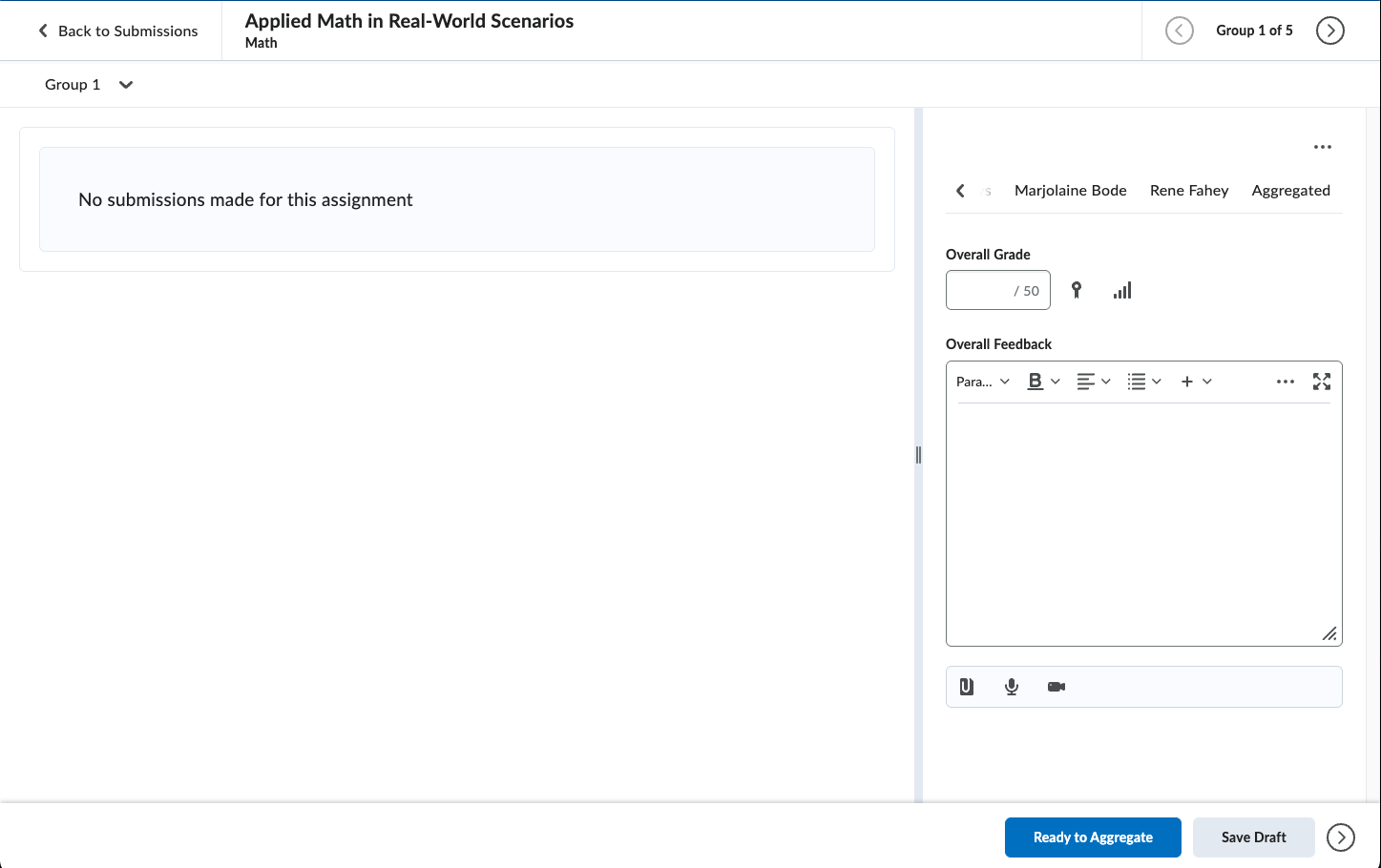
Figure: Multiple shared evaluation with Group Assignments
What Stays the Same?
- Submission Lists and Gradebook Sync: These will continue to behave as they do today.
- Quick Eval: Group assignments are not supported in Quick Eval at this time.
- Gradebook Overrides: Instructors can still provide individual grades in the gradebook, even for group assignments.
- Turnitin: Turnitin Online Grading continues to be disabled for Advanced Assessments
Cross Section Groups & the d2l.Tools.Groups.RestrictCrossSectionGroups Config variable
The d2l.Tools.Groups.RestrictCrossSectionGroups config variable controls whether cross section group access is restricted. With the config variable ON, then only evaluators in the course that have access to all sections can see the group assignment and evaluate the cross-section groups.
For now, we’ve chosen not to enforce this restriction. Why? Implementing it would introduce complexity and could result in groups without evaluators -something we want to avoid. Instead, any instructor enrolled in the course will be able to evaluate any group, ensuring smooth workflows and uninterrupted grading.
To learn more, refer to Create and manage group assignments in Advanced Assessments.